See Microsoft 365 Copilot in action across Outlook, Teams, Excel + more.

June 7, 2021

Correcting Dimensions in Business Central

With the release of Business Central version 18, Microsoft has included a new tool to correct dimensions for general ledger entries. Before this release, if a dimension was assigned incorrectly in a transaction a user would need to reverse the entry and re-enter it. Users will now be able to avoid the need to reverse the entry and simply correct the dimension. The Dimension Correction Tool includes:

    • Ability to correct assigned dimensions on G/L Entries
    • Trace history of corrections to a G/L entry
    • Undo Corrections made
    • Immediate run or background job
    • Separate update of analysis Views and Cost Accounting

To make a correction, you will find the option within the General Ledger Entries window under Entry > Correct Dimensions.

In the Draft Dimension Correction page, you can specify the dimension code that you want to change and then select “Run” for the change to take effect.

A page will come up allowing you to either schedule the job to make the change or immediately run the change.
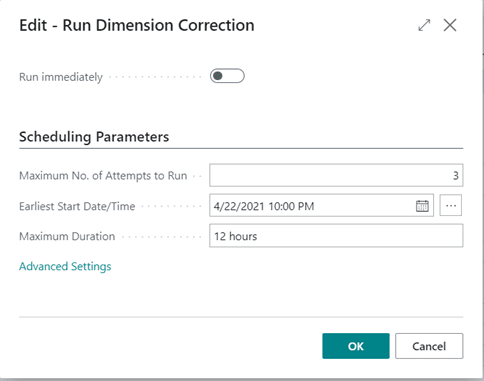
Once the change is made, you will receive a confirmation that the process was successful.

Users will be able to review the history of changes made by selecting Entry > History of Dimension Corrections. If needed, the changes can also be undone within this page.

At this point, this tool will only affect the general ledger and it will not adjust the subledgers. There will be a discrepancy between ledgers when a change is made, but if you are looking for the financial reports to be correct, then this will allow users to save time in their day to day activities within Business Central.

To learn more about how Dynamics 365 Business Central can help your business, please contact sales@BondConsultingServices.com or schedule a free consultation on our website!


Share On: 

Other articles

Free vs Paid: How Microsoft 365 Copilot Unlocks Real Productivity ROI

TJ Sedarski

|

November 13, 2025
Part of our “Work Smarter with Copilot” series — exploring how Microsoft 365 Copilot transforms productivity across Outlook, Teams, PowerPoint, Excel, and more. Copilot Free Chat is a good place to start in…

What the 2026 Business Central Updates Mean for Small and Midsized Organizations

Lupe Haro

|

November 12, 2025
Microsoft is doubling down on what matters most to today’s small and midsized organizations: automation, intelligence, and agility.The upcoming Dynamics 365 Business Central 2026 Release Wave 1 focuses on AI-powered…

Microsoft 365 Copilot Is Hot! Highlights from Community Summit 2025

TJ Sedarski

|

November 11, 2025
This article is part of our “Work Smarter with Copilot” series—spotlighting the latest Microsoft 365 Copilot updates announced at Community Summit 2025.One message rang loud and clear at this year’s…

How Microsoft 365 Copilot in Outlook Helps You Manage Email Smarter (and Tame Your Inbox)

Joel Trinidad

|

November 7, 2025
Part of our “Work Smarter with Copilot” series — exploring how Microsoft 365 Copilot transforms productivity across Outlook, Teams, PowerPoint, Excel, and more.The Email Overload Holding Teams BackFor most of…

Copilot for Power BI: Your Personal Data Assistant

Joel Trinidad

|

October 30, 2025
Microsoft has been steadily adding AI features to their broad range of business products, and Power BI is no exception. Copilot can be utilized to take full advantage of your…

How to Migrate Fixed Assets from Dynamics GP to Business Central Smoothly

George Rios

|

October 28, 2025
PlanningWhen working on a migration of Dynamics GP fixed assets to Business Central, you will want to identify which fields you want to transfer from one system to another. It…