

When we are working with a client towards an implementation, there is usually a lot of data to import from the old to the new environment. This data import is vitally important to the continuity of your business, so to ensure all the data is transferred correctly we send out Excel Import Templates. Any data that doesn’t fit neatly into the import template needs to be cleaned and organized to allow for seamless migration into the custom environment.
Many clients have multiple data points stored in a single notes field that needs to be maintained in the new environment as separate table records. The example below uses a separator, or “delimiter”, to split the data within the notes. The delimiter provides an easy way to parse the data so it can be easily imported.
For example, this table shows notes data about the Office History of certain individuals.

First, on the desired data table, select From Table/Range. This opens the Excel Power Query Editor.
 Next, select the column with the data that needs reformatting. Then navigate to the Transform tab and select Split Column > By Delimiter.

Select the Delimiter and choose “Each occurrence of the delimiter” for the frequency.

This will split the data at each punctuation mark, separating each entry into more columns that then can be linked to the correct data.
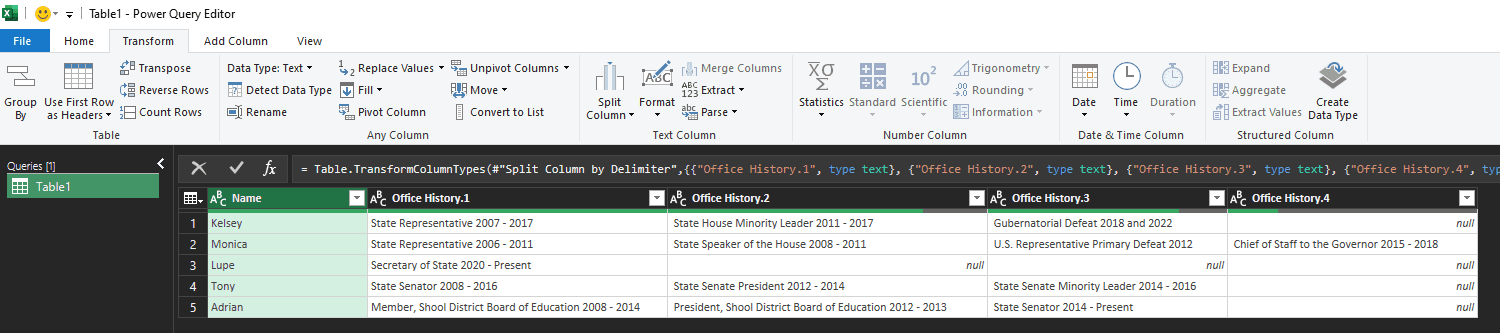 Lastly, navigate to the Transform tab and select “Unpivot Columns” > “Unpivot Other Columns.”

Your data is now ready to be imported! This format is much easier to transfer and will save you a lot of time with bulk imports. This method is widely applicable and since you can prepare it yourself, you reduce the overall cost of your implementation.

For any questions about this process or how to maximize your Dynamics 365 investment, please reach out to us at Support@BondConsultingServices.com, or click here to schedule a free consultation with one of our Dynamics experts.