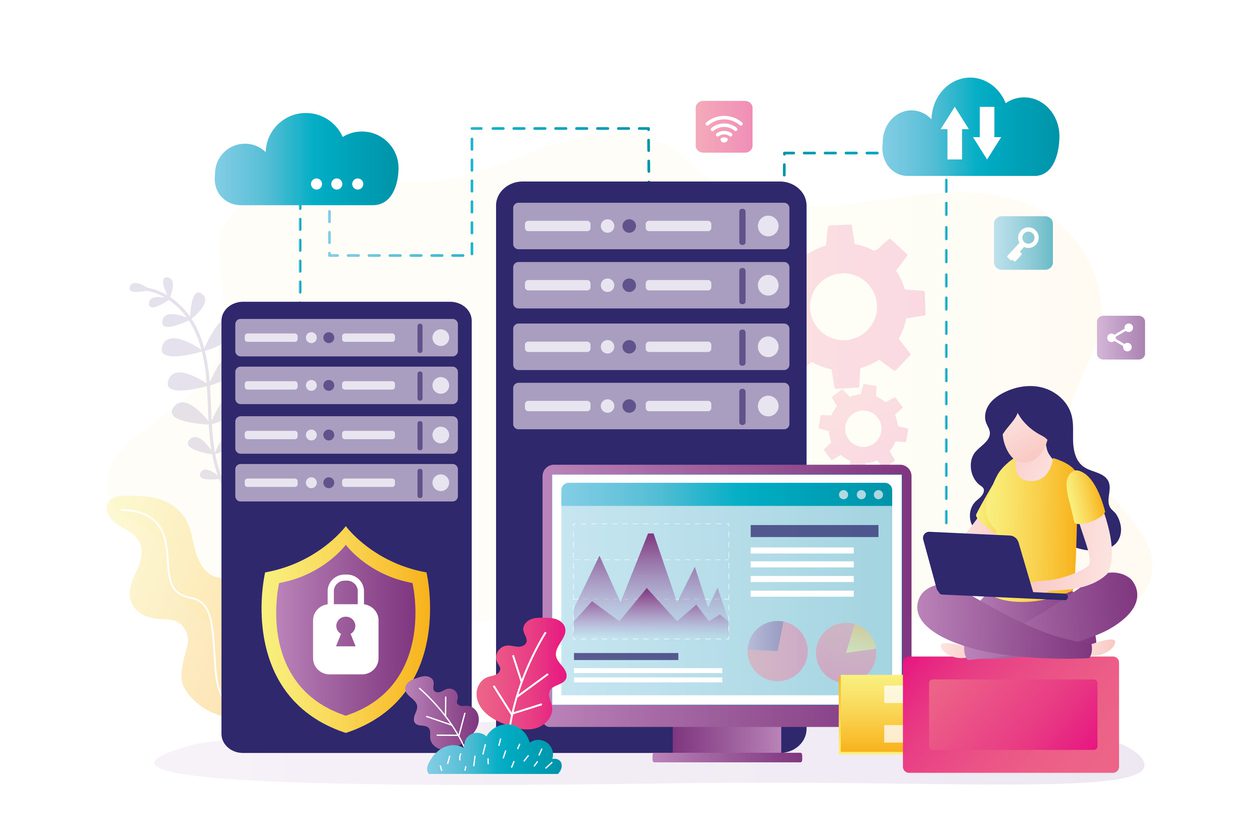

Bond Consulting Services (BCS) understands the immense importance of protecting your critical business data from cybersecurity attacks and unauthorized users. Microsoft Dynamics solutions include many built-in levels of security such as identity permissions, encryption, authentication and data loss prevention tools so you can focus on what matters most for your business.
One of these great security tools is Field Level Security in Dynamics GP which restricts access to fields, windows or forms by requiring a password. Ensuring users have password clearance is very helpful as it prevents unauthorized users from accessing and altering sensitive data such as item costs, credit limits, and purchase orders. If you would like to hide fields from certain users and enhance your data security, follow the steps below to establish Field Level Security in your Dynamics GP instance. You must be an administrator in the system to setup Field Level Security:
1. Navigate to your Microsoft Dynamics GP instance. From the top menu, select Tools > Setup > System > Field Level Security.

2. In the Field Level Security window, click the Add icon to create a new Field Level Security role.

3. Populate the Field Security ID and the Description. Then, select the Product Name lookup icon.

4. Select whichever field from the modules available that you would like to set Field Level Security for. In this example, we selected a field from the Sales module but you could also add Field Level Security for Inventory, Purchasing, Payroll and many others. Next, select the appropriate GP window and the GP field from the right-hand pane that you would like to set Field Level Security for.

5. Now you can select the appropriate Security Mode from the drop-down list provided. This step is very powerful as you can decide how you want your Field Level Security to work. You can select to require a password before or after the session, you can setup a warning, you can lock the field, hide the field, or even disable it. If you select a Security Mode that requires a password, a Password ID will have to be created. Click Save in the top menu.

6. Within the Field Level Security screen, select the user(s), the companies where it should be applied, and the Field Security ID. Then, click OK.

If a Field Security ID is not checked, it is not currently enabled in the system. You can instantly enable or disable Field Level Security restrictions by selecting or deselecting the checkboxes in the Field Level Security screen.
7. Completing steps 1-6 will enable Field Level Security in your Dynamics GP instance and enhance your data protection and security by requiring a password or hiding the specific field from unauthorized users.

Field Level Security is a very quick and easy way to protect your business data and ensure that employees only have access to the data and information they need to complete their jobs to the best of their ability. This powerful tool is a default functionality in Dynamics GP so it can be added for any business or organization, but you must be an administrator to setup the Field Level Security restrictions.
To learn more about the unique capabilities of Dynamics GP and how they can be leveraged to enhance your business success, please contact our BCS Team at sales@BondConsultingServices.com or schedule a free consultation on our website.