Sales tax works...until it doesn't. Join our May 5 webinar.

December 19, 2023

Dynamics 365 Sales | Import/Update Complex Records Workaround

While leveraging the default key field is often sufficient for data imports in Dynamics 365 Sales, certain scenarios require a more nuanced approach. For records holding complex relationships with other entities, a single key may prove insufficient to ensure accurate updates.

The following steps below may be used to import/update data for records that contain other records from a related entity without using the default key field. This may be helpful depending on the type of data that needs to be imported/updated to more easily identify a related record.

  1. Once the import file is ready, you may proceed to navigate to the Entity that you would like to import data for.
  1. Within the entity, you may proceed to click the Import from Excel icon.
    Red Box highlights text "Import from Excel" on a screenshot of the entity window within Dynamics 365 Sales.
  2. The Choose File icon will have to be selected in order to select the import file.
    Red box highlights text, "Choose File" on the Import from Excel window in Dynamics 365 Sales
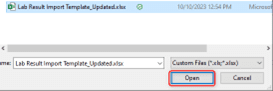
  3. You may select the file to be imported, then click Open.
    red box highlights the "open" option on the file explorer. File selected was Lab Reports Import Template Updated.xlsx.
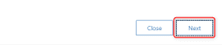
  4. Once selected, click Next located at the bottom of the window.
    a red box highlights the "Next" option, juxtaposed with a close option.
  5. Then, click the Review Mapping icon.
    A red box highlights around the "Review Mapping" button in the center of two other buttons. There is a "Back" button on the left and a "Finish Report" button on the right.
  6. Here, you will need to locate the record lookup field for the related entity value, then click the Magnifying glass icon.
    Image displays the Record Lookup field window in Dynamics 365 Sales. A text box on the left displays "Sample ID" in semi-transparent grey text. A red box highlights a magnifying glass icon to the left of a text box displaying "Sample ID (Lookup)"
  7. Click the “x” by the Name field or the default field and then you select the field that you would like to use as an identifier rather than the default field that would’ve been used.
    Within the reference for field Sample ID, a red box with a 1 inside of a red circle points to an X near the word "Name". Below a second red box and number 2 in a red circle point to an unchecked box next to the text "CGO ID"
  8. Once the appropriate field is selected, you may click Ok.
    A screenshot of a computer displaying a box with "CGO ID" text next to Work Order category. A red box highlights OK option at the bottom next to a Cancel option.
  9. Lastly, you may click the Finish Import icon to begin importing the data into the system.
    Two boxed options "Back" and "finish import". The "Finish Import" option has a red box around it to highlight its importance.
  10. After importing, you will receive a message stating that the data has been submitted for import and you may either click Track Progress to see the progress of the import or you may click the Done icon to close out of the import.
    Text on a white background. "Import from Excel" "Your data has been submitted for import"

For any questions about this or how to maximize your Dynamics investment, please reach out to Support@BondConsultingServices.com or click here to schedule a free consultation with one of our expert Dynamics consultants. Learn more about Dynamics 365 Sales or other Microsoft products directly from them!


Other articles

Microsoft Dynamics 365 Business Central Implementation Packages

Clayton Jones

|

April 29, 2026
If you’re like 99% of our clients, you’re trying to rein in the soaring costs of technology. It’s a delicate balancing act. On the one hand, you understand that you…

Doing More With the Team You Have: What BCS is Changing with AI

Jackie Gant

|

April 29, 2026
AI is everywhere right now, but what feels different is the pace. For the first time in a long time, small and mid-sized businesses are adopting new technology just as quickly…

Why AI Sometimes Feels Off (Even When You Have the Data)

Zoltan Orban

|

April 23, 2026
Webinar: Doing More With the Team You Have | What BCS is Changing About AIApril 28 @ 12:00 PM PT/3:00 PM ETRegister Now!Most small and mid-sized businesses aren't behind on…

What 200% ROI from Business Central Really Looks Like

Jackie Gant

|

April 13, 2026
Where ROI actually shows up from finance efficiency to operational visibility Forrester says Business Central delivers 200% ROI. But what does that actually look like in practice? A recent Total Economic…

Do You Need Avalara for Business Central? A Practical Guide

Clayton Jones

|

April 10, 2026
Webinar: Sales Tax Works…Until It Doesn’t: Tax Complexity at Scale for Product CompaniesMay 5 @ 10:00 AM PT/1:00 PM ETRegister Now!Most companies focused on making, distributing, or selling products manage…

What Is Work IQ? How Microsoft Copilot Moves from Data to Context

Zoltan Orban

|

April 9, 2026
Work IQ is one of those terms that can sound more complex than it really is. Most AI tools today work by pulling from available data. They can read records, summarize…