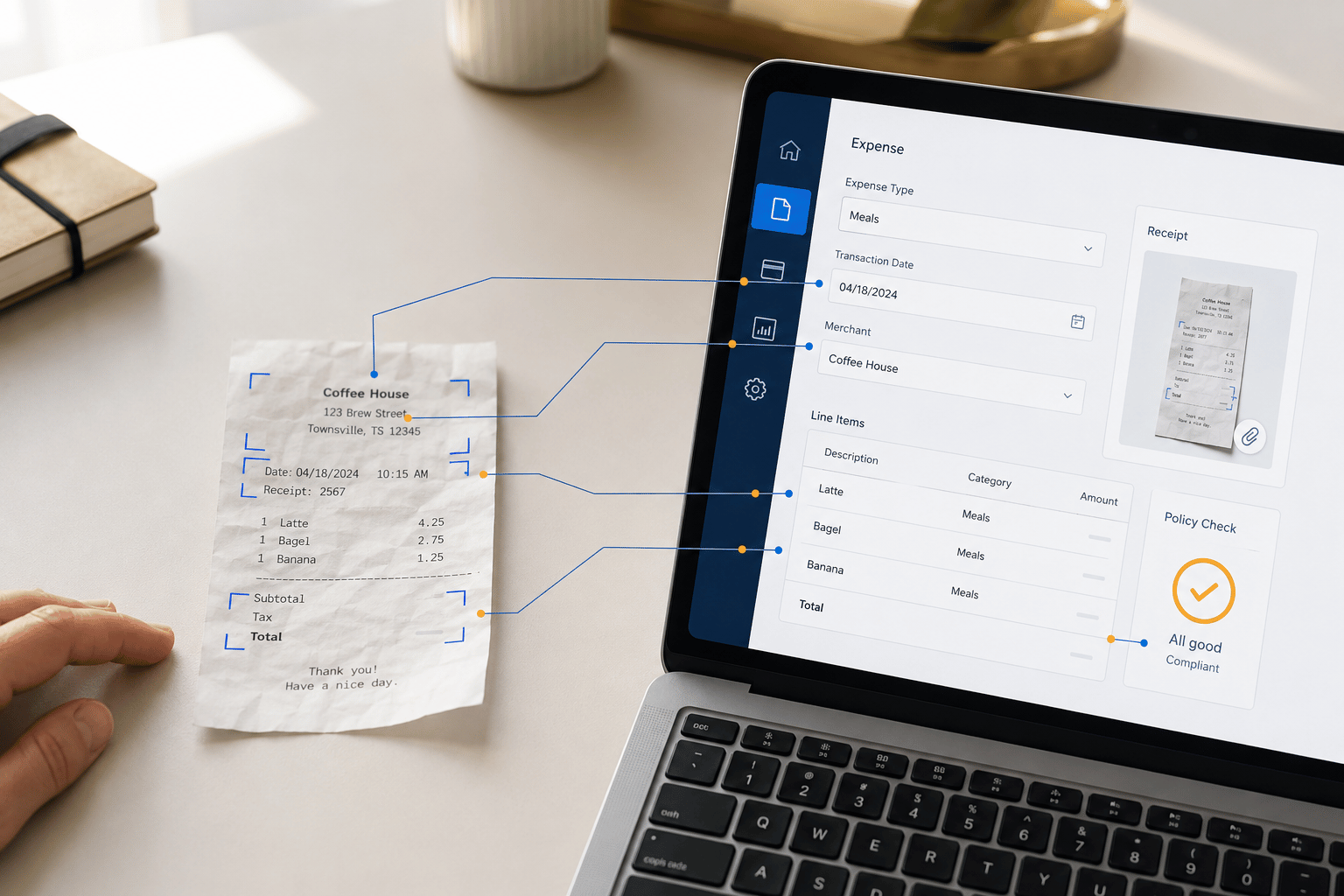
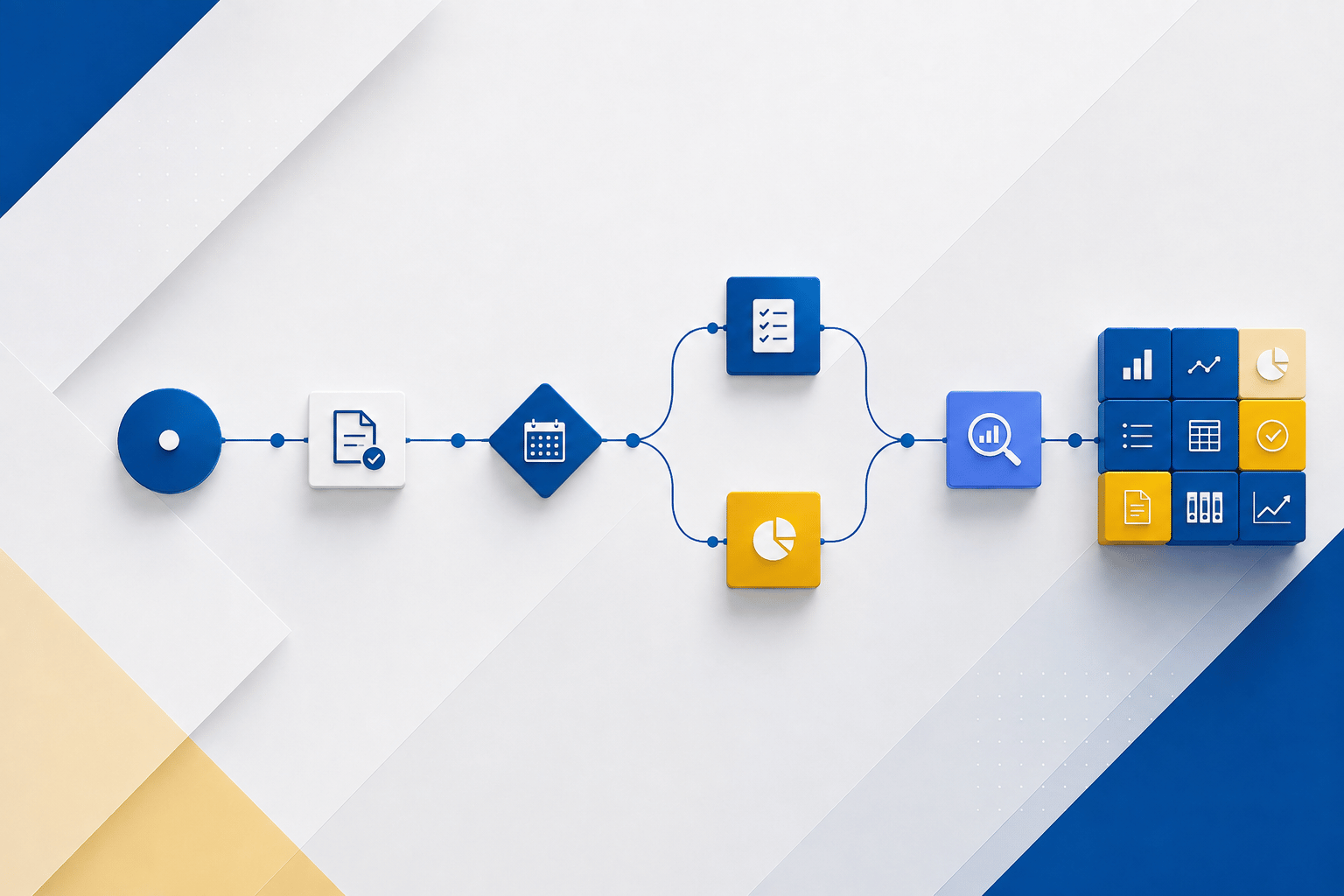
Customer Relationship Management is an increasingly important tool in a business’ repertoire to facilitate growth. It is easier and more financially worthwhile to retain an existing customer rather than acquiring a new customer. Usually, BCS recommends Microsoft Dynamics 365 Sales as a fully loaded CRM solution, but some businesses do not require such a robust environment.
“Advanced CRM,” developed by ERP Connect Consulting, fulfills a similar CRM role within Business Central at a reasonable price and with the following capabilities:
- Contacts can be divided into the three stages of the sales cycle – Lead, Opportunity, and Customer
- Mass e-mailing through marketing campaigns
- A robust and intuitive user interface
Here, we will focus on processing Leads, Opportunities, and Customers.
Leads
Search for and select “Leads Contacts (CRM)” and click  .
.
The following screenshot reflects that only the very basic contact information is required to establish a Lead:

Click on the field, “ERC Primary Contact Name”, and choose “Yes”:

Within the Person Card (CRM) window, update the “Info” and “Contact Details” sections. Please note the data within the “Address” section will flow from the Lead Contact to the Primary Contact.

Scroll down to find “Person Timeline” and “Person Profile.”
- “Person Timeline” is updated automatically by the application.
- “Person Profile” is an optional checklist, but checking its boxes provides valuable information for facilitating sales calls and meetings.
- For example, checking “Golf” in the “Hobbies” section prompts such questions as, “Did you book a tee time for this weekend?”.

Clicking “Close” returns you to the “Lead Contact Card (CRM)” window.
Upon scrolling down in “Lead Contact Card (CRM)”, you are brought first to a freeform note window:

Scrolling down further brings you to the “Profile and Checklist” section containing “Lead Profile”, “Checklist”, “Attached Documents”, and “Standard Documents”:

“Lead Profile” is a profile for the Company Contact itself – not the Person Contact.
If requirements are specified for converting the Lead into an Opportunity, then the boxes for “Completed for Leads” in the checklist should be marked.
Adding documents within “Attached Documents” is optional, while “Standard Documents” represents documents always distributed to the Lead.
If you want to send an e-mail to this potential customer, scroll to the top and click this button:

Doing so brings up a List window of one or more Email Templates to choose from:

After selecting the necessary template, update or enter any e-mail addresses and edit the Message if required:

Please note the Email Details window also offers helpful tools such as “Insert image” and “Insert hyperlink” options.
After clicking the “Send Email” button, the “Contact Timeline” on the Leads Contact (CRM) Card is updated by the content of the e-mail.
You can alternatively copy and paste text from an e-mail into this window, if you sent the e-mail from outside of the application, as shown here:

Opportunities
After updating the field “Estimated Contract Value”, convert the Lead into an Opportunity by clicking  .
.


Search for and select “Opportunity Contacts (CRM)”, and click on the Contact in the “No.” column:

The “Opportunity Contact Card (CRM)” is shown below.

At any stage in the sales cycle such as “Opportunity”, you can add a note simply by clicking .
.

The note requesting an Estimate, as in this case, appears in the Contact Timeline:

Estimates are quotes that do not require a customer or items. You can freely enter any data and convert the document to a Sales Quote or a Sales Order. (Estimates are simpler documents than Sales Quotes.)
To create an Estimate, search for and select “Estimates (CRM)” and click .
Tab out of the “Estimate No.” field, as the first step:

For the line item’s Type field, you may choose “G/L Account”, “Item”, “Resource”, “Fixed Asset”, or “Charge (Item)”:

After updating the header with complete information and entering at least one line item, you can e-mail the Estimate or print the Estimate. The following appears, upon clicking  :
:

Here is the preview of the created Estimate:

Please note you can only convert the estimate into an order after converting this Opportunity into a Customer.
Customers
Back on the Opportunity (CRM) Card, turn the Opportunity into a Customer by completing the Checklist shown at the bottom if required:

Next, click  .
.

When prompted, choose the appropriate template:


Search for and select “Estimates (CRM)”.
Then, click the link for your Estimate:

Scroll down to “Billing”, and choose the new Customer from the “Bill-to Customer No.” drop-down list:

Update “Client Info”, appearing at the top of the Estimate:

Now click  .
.


Conversely, if the response to the Estimate was negative and the Contact does not want to proceed with an order, click “Lost”:

Wins and losses are tracked for estimates for historical reporting on success rate.
Search for and select “Sales Orders”, and click on the Sales Order that you just created:

Below is the final result.

By using Advanced CRM, you can see the full sales lifecycle from Lead to Opportunity to Customer. For more information about this add-on or other inquiries about maximizing your Business Central investment, please reach out to us at Support@BondConsultingServices.com or click here to schedule a free consultation with one of our Dynamics 365 experts.