See Microsoft 365 Copilot in action across Outlook, Teams, Excel + more.

November 3, 2021

Undo Assembly Process in Microsoft Dynamics 365 Business Central

A recent scenario we have came across is the need to “undo” an assembly order when the assembled product is found defective and will not be sold to the customer. Please follow the steps below to guide you through this process.

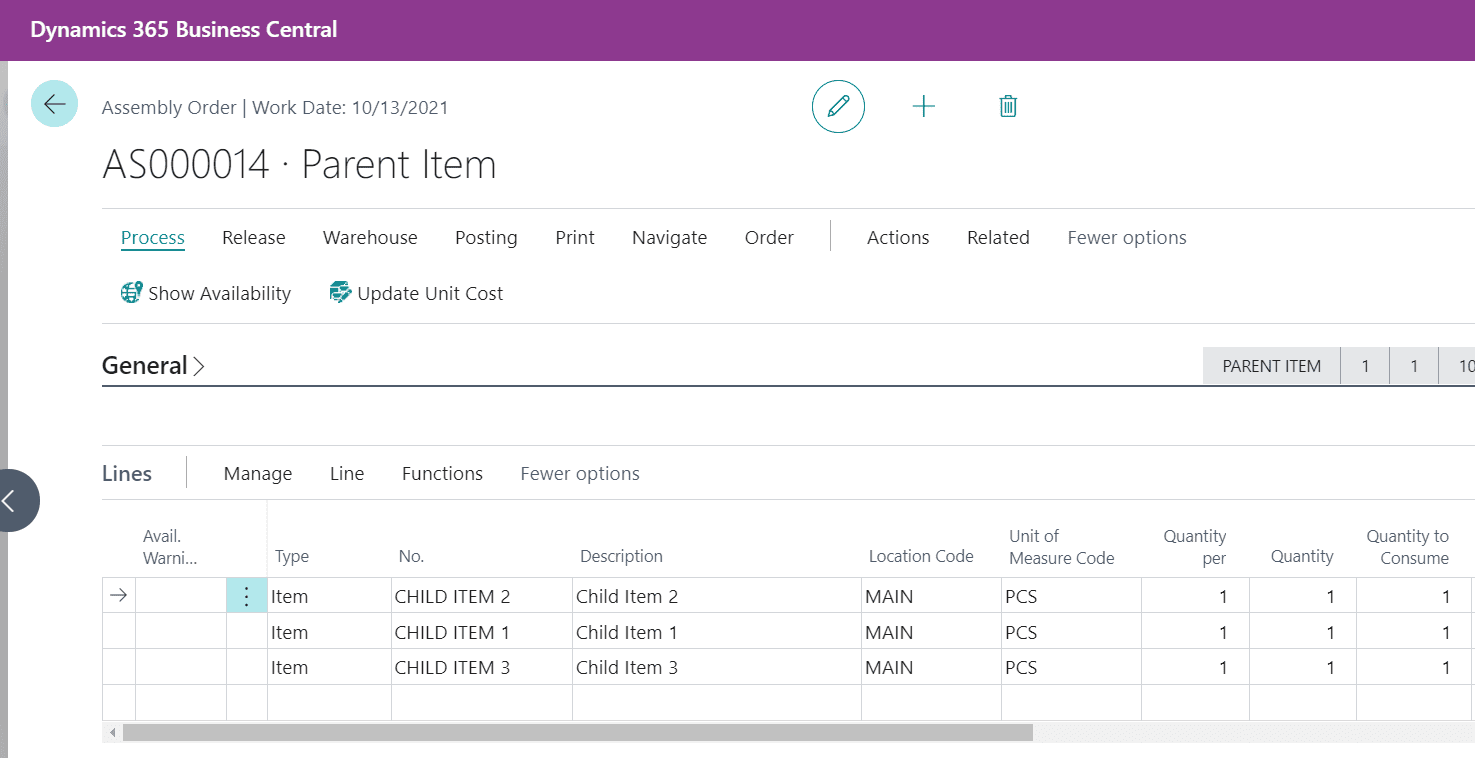
Step 1: Go to the “Assembly Order” created for the Parent Item, a linked Assembly order is created automatically.
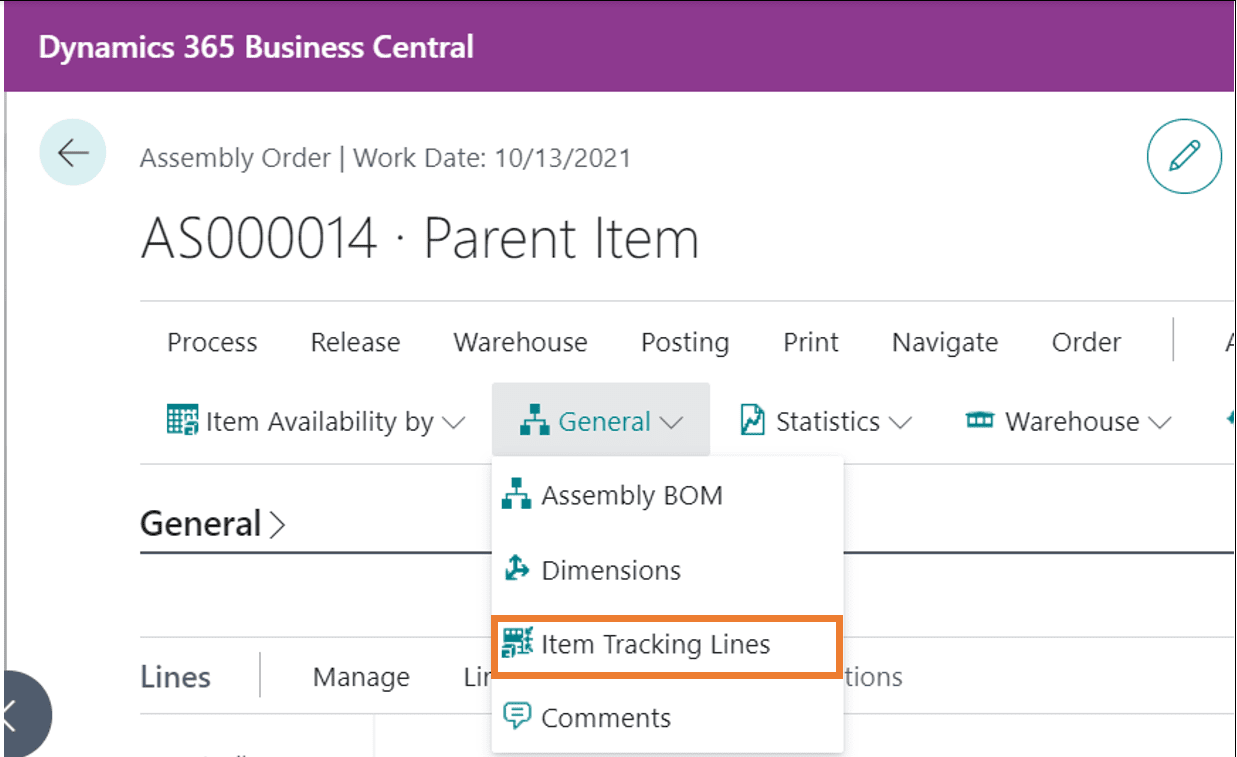
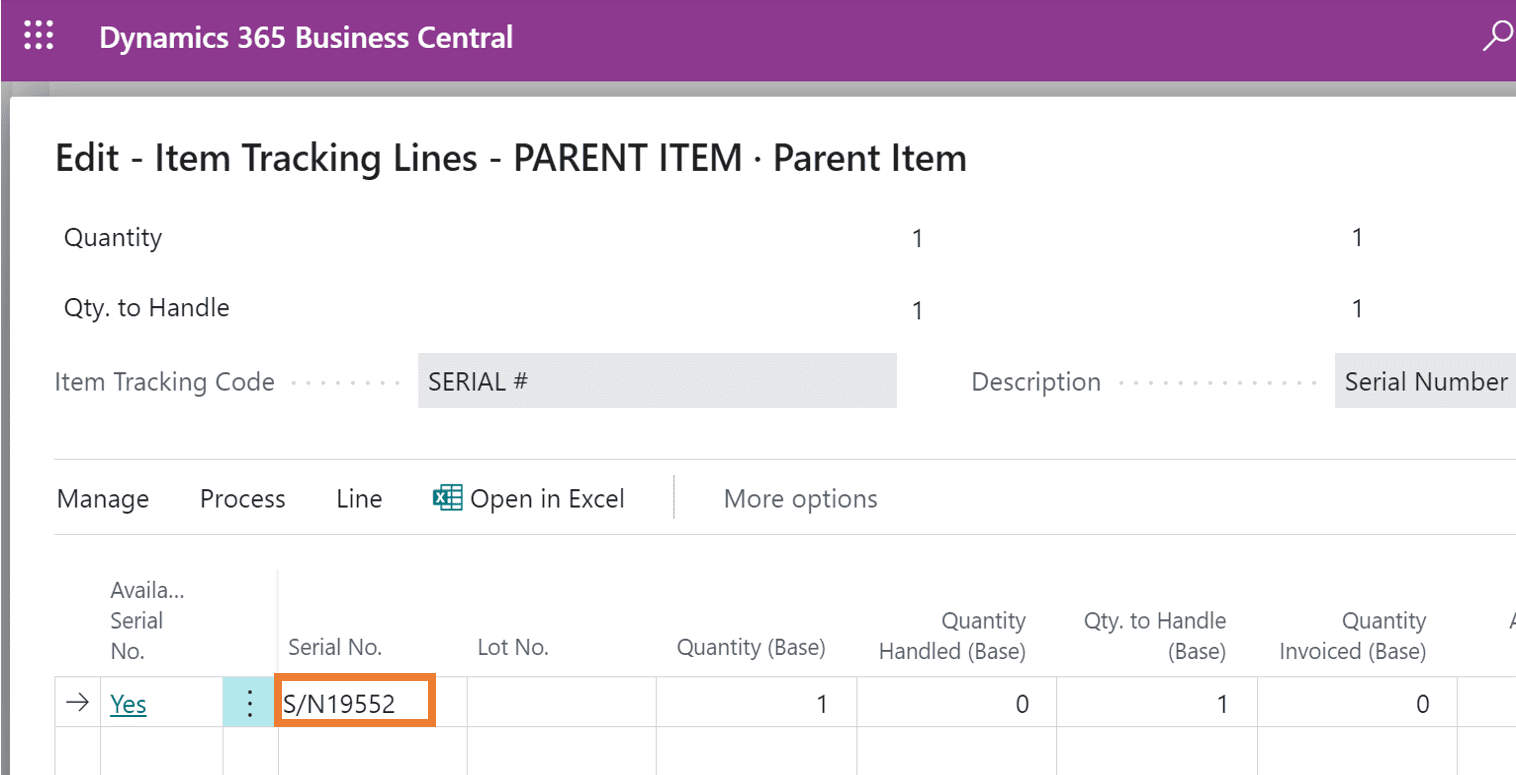
Step 2: Select Item Tracking Lines to assign a serial number for the parent item.
Step 3: The serial number is assigned to the Parent Item.
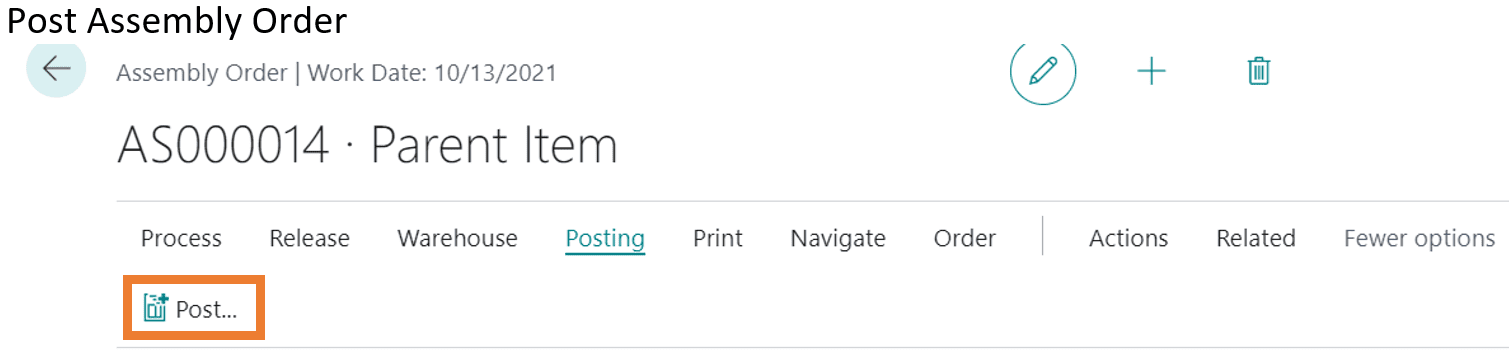
Step 4: Post the Assembly Order.
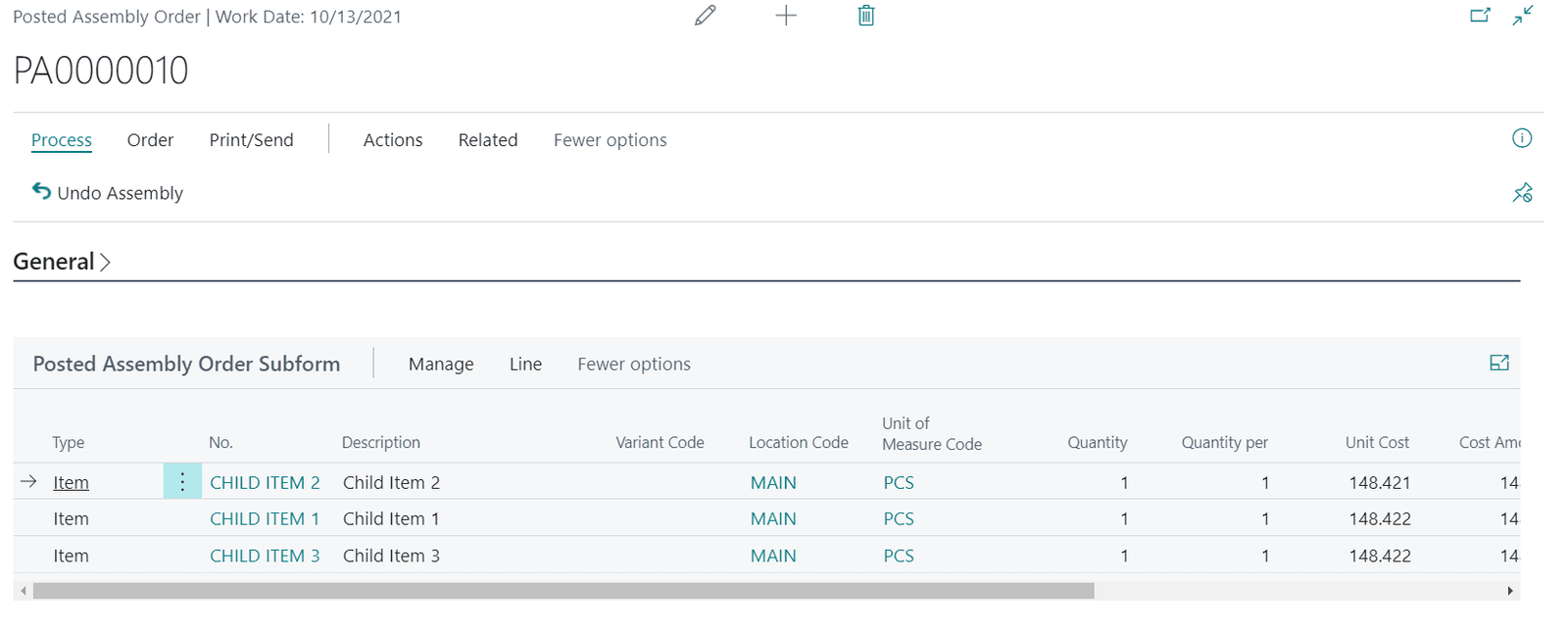
Step 5: The Posted Assembly Order looks like the image below.
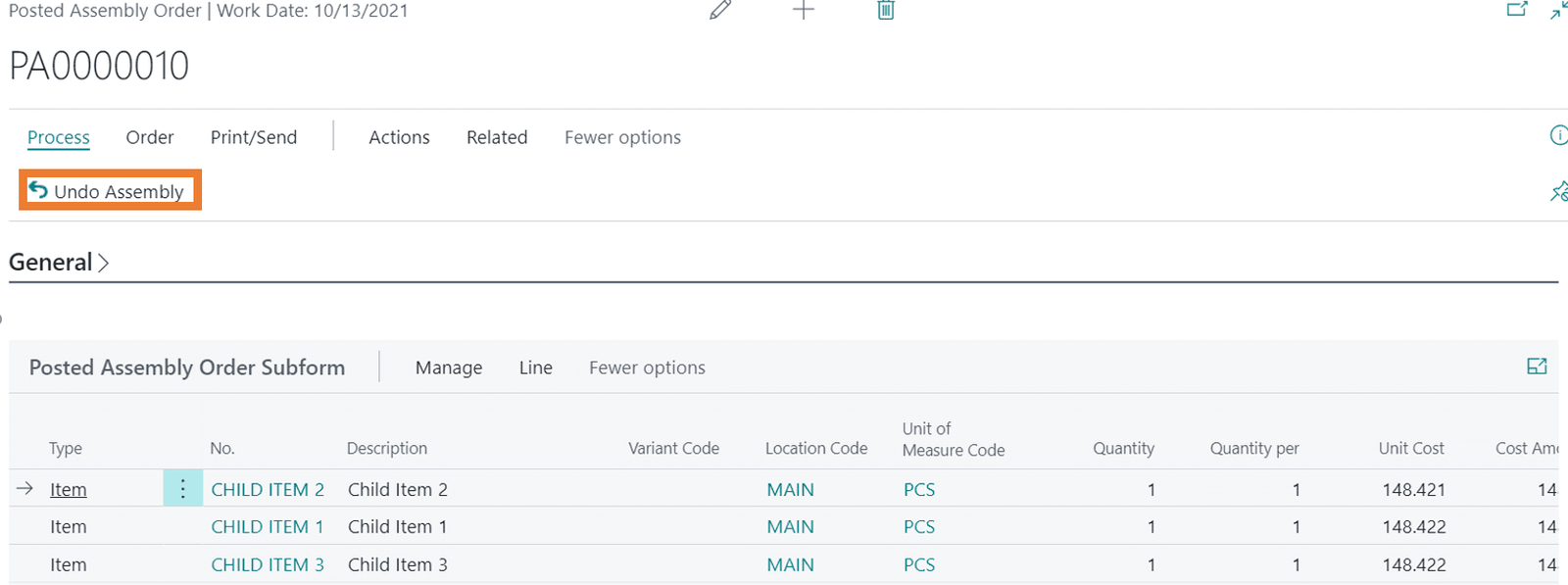
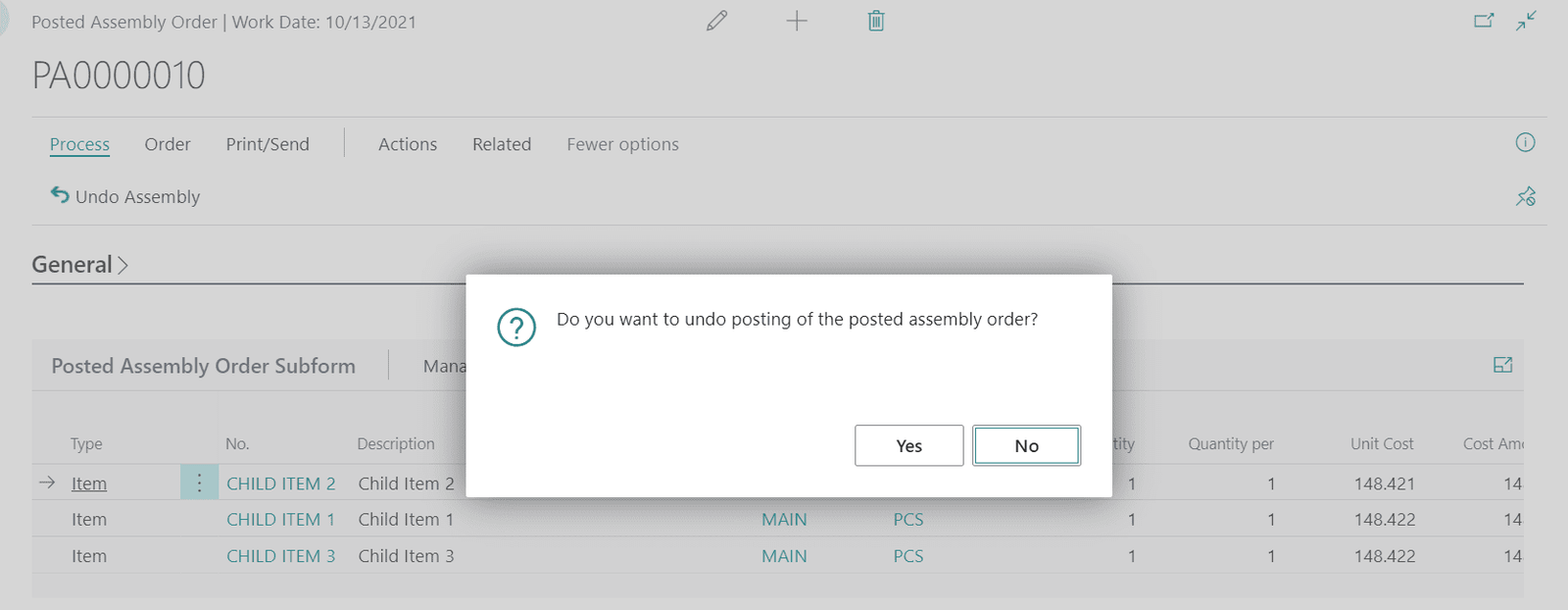
Step 6: Now when a user finds an issue in the assembled product, that user can decide to “UNDO” the posted Assembly order before selling the Assembled product.
Step 7: Select YES.
 

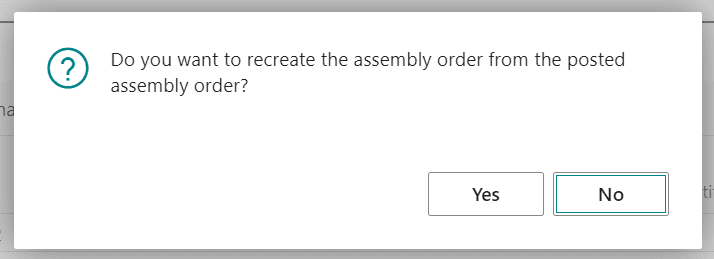
Step 8: Then select YES if you want to create an assembly order from the posted assembly order.
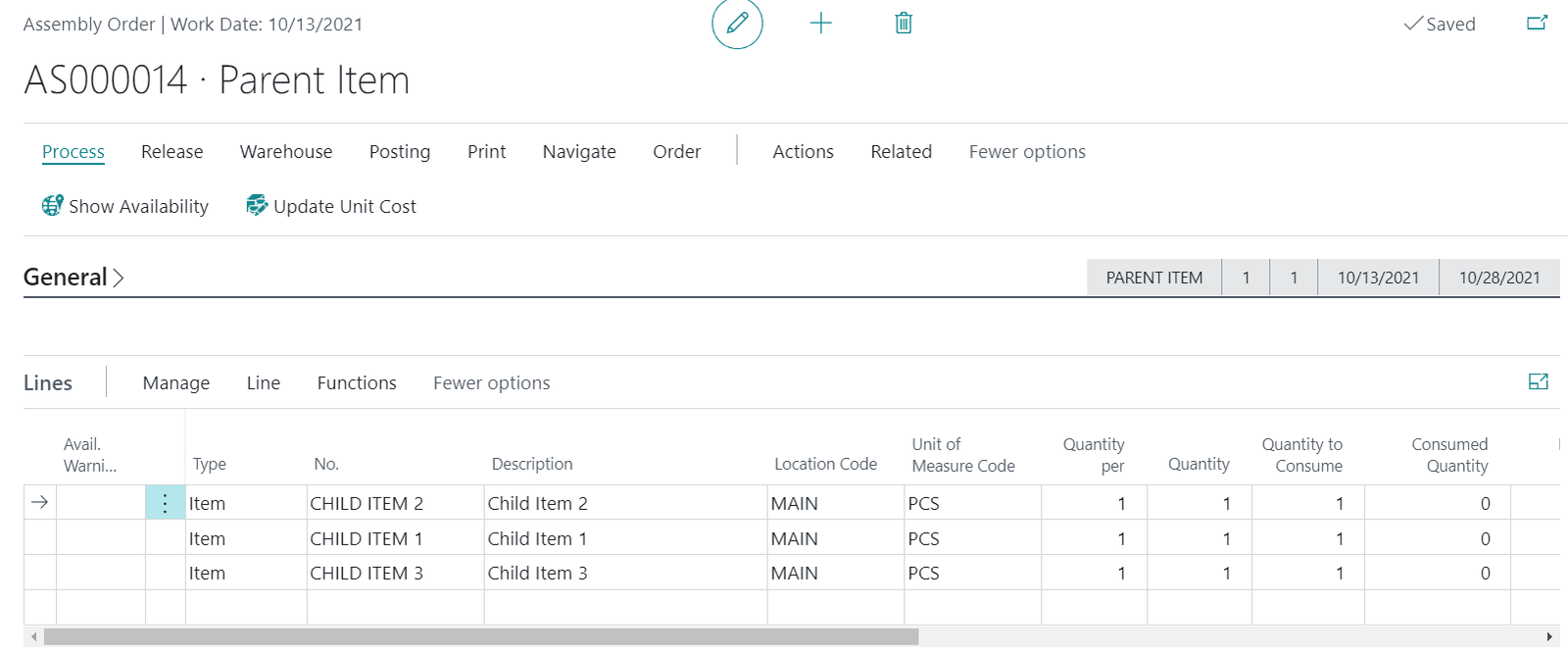
Step 9: The Assembly Order is created again. Now the user can REDO the assembly process (by replacing the parts).
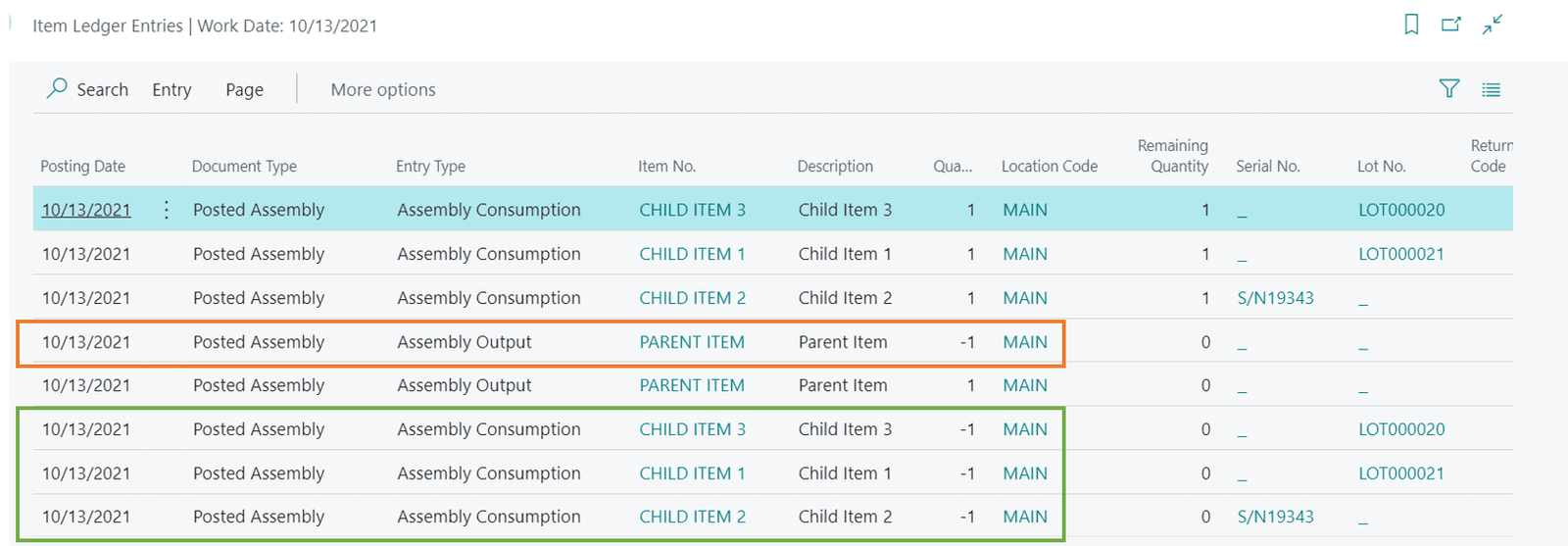
Step 10: Item Ledger entries will look like the image below and we can see the reversal of “Assembly Consumption” and “Assembly Output” entries.
For more information about Dynamics 365 products including Business Central, check out our other blogs as well as our YouTube channel for demonstrations.

 

Share On: 

Other articles

Free vs Paid: How Microsoft 365 Copilot Unlocks Real Productivity ROI

TJ Sedarski

|

November 13, 2025
Part of our “Work Smarter with Copilot” series — exploring how Microsoft 365 Copilot transforms productivity across Outlook, Teams, PowerPoint, Excel, and more. Copilot Free Chat is a good place to start in…

What the 2026 Business Central Updates Mean for Small and Midsized Organizations

Lupe Haro

|

November 12, 2025
Microsoft is doubling down on what matters most to today’s small and midsized organizations: automation, intelligence, and agility.The upcoming Dynamics 365 Business Central 2026 Release Wave 1 focuses on AI-powered…

Microsoft 365 Copilot Is Hot! Highlights from Community Summit 2025

TJ Sedarski

|

November 11, 2025
This article is part of our “Work Smarter with Copilot” series—spotlighting the latest Microsoft 365 Copilot updates announced at Community Summit 2025.One message rang loud and clear at this year’s…

How Microsoft 365 Copilot in Outlook Helps You Manage Email Smarter (and Tame Your Inbox)

Joel Trinidad

|

November 7, 2025
Part of our “Work Smarter with Copilot” series — exploring how Microsoft 365 Copilot transforms productivity across Outlook, Teams, PowerPoint, Excel, and more.The Email Overload Holding Teams BackFor most of…

Copilot for Power BI: Your Personal Data Assistant

Joel Trinidad

|

October 30, 2025
Microsoft has been steadily adding AI features to their broad range of business products, and Power BI is no exception. Copilot can be utilized to take full advantage of your…

How to Migrate Fixed Assets from Dynamics GP to Business Central Smoothly

George Rios

|

October 28, 2025
PlanningWhen working on a migration of Dynamics GP fixed assets to Business Central, you will want to identify which fields you want to transfer from one system to another. It…