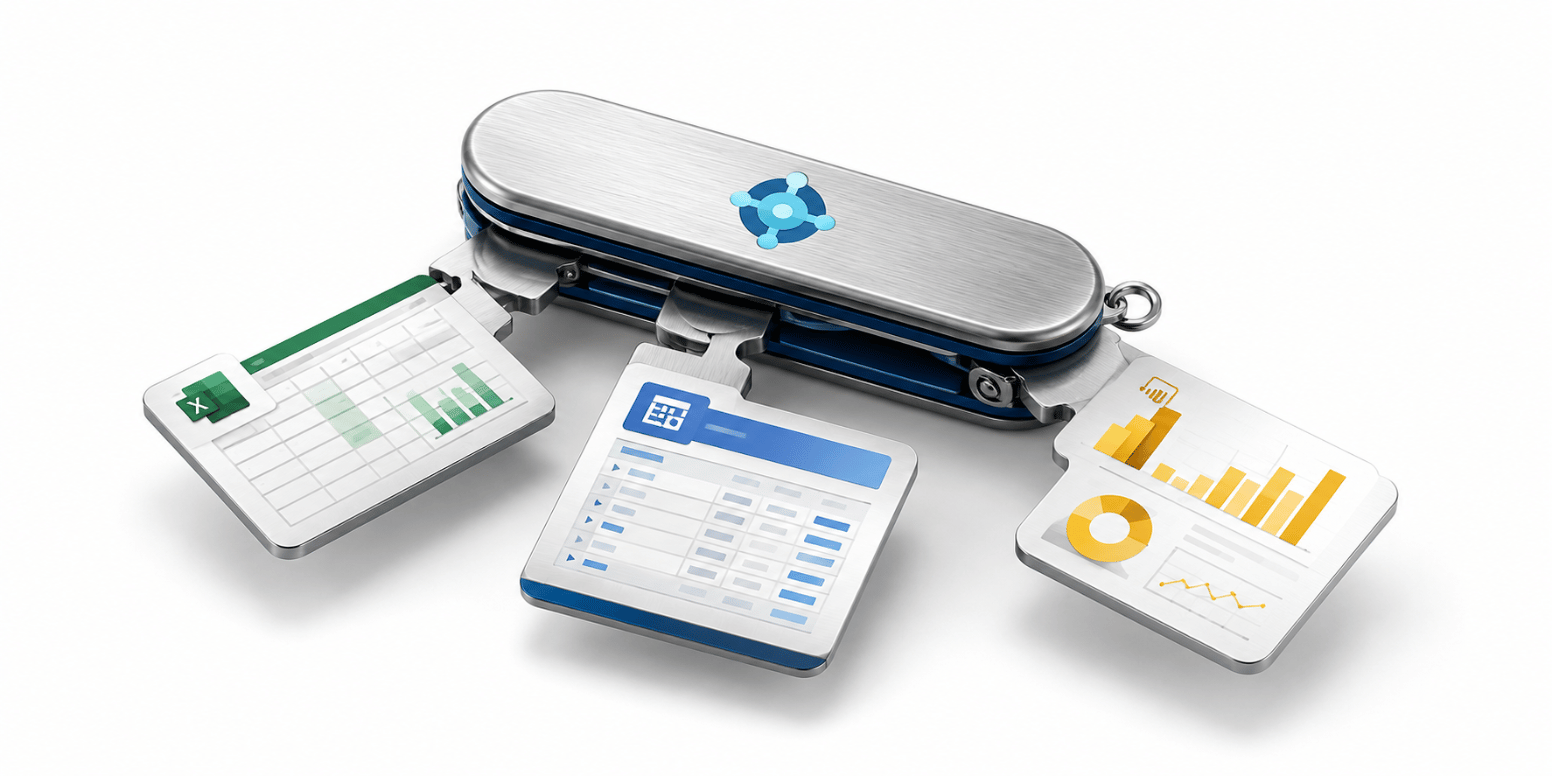
Extracting data from configuration tables, which store setup information for various functionalities, allows you to uncover hidden trends, create custom reports, automate tasks, integrate with external tools, and troubleshoot setup issues. From analyzing customer segmentation to optimizing inventory and monitoring workflows, configuration table data empowers you to make informed decisions and elevate your Business Central experience.
Dynamics 365 Business Central empowers data extraction, but managing massive tables can strain system performance. Configuration packs offer a solution for optimal data retrieval. By allowing you to specify the exact data sets you need, configuration packs eliminate unnecessary information transfer, reducing the processing burden on the system. This is particularly beneficial for large tables with many columns (over 100). Imagine extracting information from just four columns out of 14,000 items – configuration packs streamline this process, minimizing resource usage and ensuring efficient data retrieval without compromising system performance.
Follow these steps to access the configuration packages:
- In the global search, type Configuration Packages and select the appropriate link.

- A new package card can be created for specific extractions. To do this, click +New.

- Create a Code and Package Name

- Click the three dots to select your Table ID


- Click on the number listed under “No. of Fields Included.”

- A screen will open which will allow you to remove data columns in your spreadsheet. To remove a column(s) uncheck the box under Included Field. Click the back arrow once you’re done editing the spreadsheet columns. *By default, BC tables will have all available columns selected.

- Select Excel and then Export to Excel.

For more information about Business Central configuration packages or how to maximize your investment in general, please reach out to us at Sales@BondConsultingServices.com or you can visit our YouTube channel for helpful webinar recordings and product walkthrough videos. Alternatively, you can click here to schedule a free consultation with one of our Dynamics experts.