


A permission or permission sets are used in Dynamics 365 Business Central to grant access for a user or user group based on the job requirement of the team member(s).
In an organization, there will be users who will have a full user license called “Super user” and access to the complete Business Central application. The “Super user” will be able to control the user access of all users in the organization by using user group, permission sets and permissions. This can be possible by setting up the permissions to Read, Insert, Modify, Delete and Execute permission for each User, controlling the user’s access.
If you happen to be a team member in the Assembly Department and your job consists of Assembly orders, please follow the below guide to set up the appropriate permissions for this specific user.
Step 1: Search for “Permission Set” in Global search.
Select the appropriate link to open the “Permission Sets” page.

Select “New” to create a new permission set.

Step 2: Name the new permission set created. In this case, we will name it “BASIC_ASSY”.

Step 3: By keeping the cursor in “BASIC_ASSY”, select “Permissions”.

Step 4: Now you will see the below page, where you can select the required Table Data & pages related to Assembly in the “Permissions” page.

Step 5: All the Table data and Page related to Assembly Order are selected as shown below.
Here you can see the required Read, Insert, Modify, Delete and Execute permission for each “Object type”.

Step 6: Search for User group in Global search and select the appropriate link to open the User Group.

Step 7: Select “New” to create a new user group and let’s name it as “BASIC”.

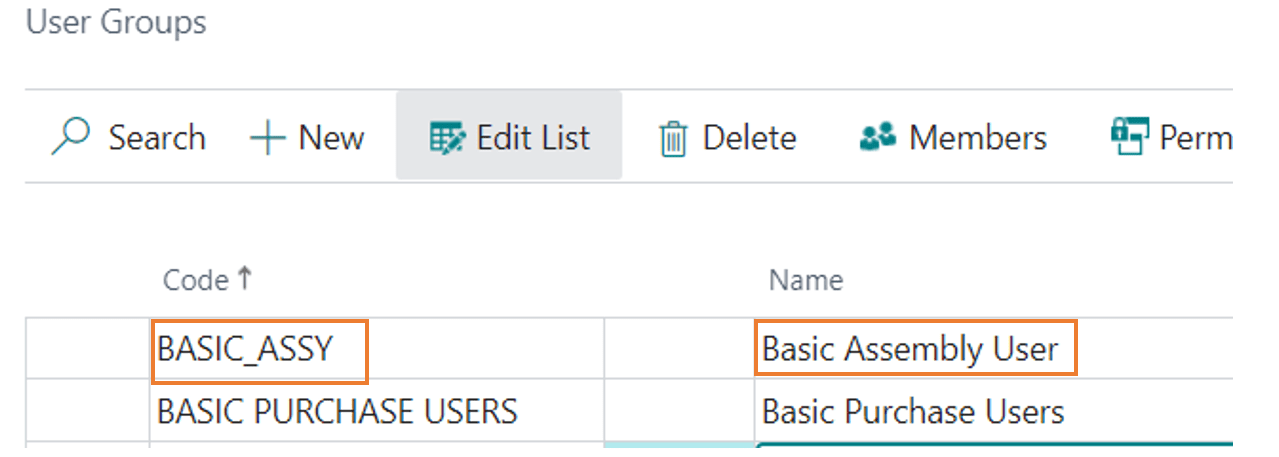
Step 8: Now keep the cursor in the created user group “BASIC_ASSY” and select “Permissions”.

Upon selection, we can see the below image.

Now select the three dots and select the Permission set (BASIC_ASSY) you have created in previous steps.
Select the created permission Sets “BASIC_ASSY”.

Step 9: Now from the User group page, you can select “Members”.

Now assign users to this group.

Step 10: Select the appropriate user in “BASIC_ASSY” group. The user is now set to use the Assembly related activity with the set permissions.

Important Note: There might be relevant master table, table data, pages required for using assembly / Assembly related activities, and accordingly we need to select those during creation of “Permission Sets” shown in above steps.
For any other Microsoft Dynamics 365 inquires – Contact us at support@BondConsultingServices.com




