Microsoft Copilot $21 now $18/user/month + 1 month free

December 19, 2023

Dynamics 365 Sales | Import/Update Complex Records Workaround

While leveraging the default key field is often sufficient for data imports in Dynamics 365 Sales, certain scenarios require a more nuanced approach. For records holding complex relationships with other entities, a single key may prove insufficient to ensure accurate updates.

The following steps below may be used to import/update data for records that contain other records from a related entity without using the default key field. This may be helpful depending on the type of data that needs to be imported/updated to more easily identify a related record.

  1. Once the import file is ready, you may proceed to navigate to the Entity that you would like to import data for.
  1. Within the entity, you may proceed to click the Import from Excel icon.
    Red Box highlights text "Import from Excel" on a screenshot of the entity window within Dynamics 365 Sales.
  2. The Choose File icon will have to be selected in order to select the import file.
    Red box highlights text, "Choose File" on the Import from Excel window in Dynamics 365 Sales
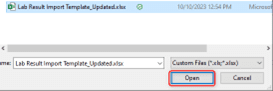
  3. You may select the file to be imported, then click Open.
    red box highlights the "open" option on the file explorer. File selected was Lab Reports Import Template Updated.xlsx.
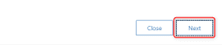
  4. Once selected, click Next located at the bottom of the window.
    a red box highlights the "Next" option, juxtaposed with a close option.
  5. Then, click the Review Mapping icon.
    A red box highlights around the "Review Mapping" button in the center of two other buttons. There is a "Back" button on the left and a "Finish Report" button on the right.
  6. Here, you will need to locate the record lookup field for the related entity value, then click the Magnifying glass icon.
    Image displays the Record Lookup field window in Dynamics 365 Sales. A text box on the left displays "Sample ID" in semi-transparent grey text. A red box highlights a magnifying glass icon to the left of a text box displaying "Sample ID (Lookup)"
  7. Click the “x” by the Name field or the default field and then you select the field that you would like to use as an identifier rather than the default field that would’ve been used.
    Within the reference for field Sample ID, a red box with a 1 inside of a red circle points to an X near the word "Name". Below a second red box and number 2 in a red circle point to an unchecked box next to the text "CGO ID"
  8. Once the appropriate field is selected, you may click Ok.
    A screenshot of a computer displaying a box with "CGO ID" text next to Work Order category. A red box highlights OK option at the bottom next to a Cancel option.
  9. Lastly, you may click the Finish Import icon to begin importing the data into the system.
    Two boxed options "Back" and "finish import". The "Finish Import" option has a red box around it to highlight its importance.
  10. After importing, you will receive a message stating that the data has been submitted for import and you may either click Track Progress to see the progress of the import or you may click the Done icon to close out of the import.
    Text on a white background. "Import from Excel" "Your data has been submitted for import"

For any questions about this or how to maximize your Dynamics investment, please reach out to Support@BondConsultingServices.com or click here to schedule a free consultation with one of our expert Dynamics consultants. Learn more about Dynamics 365 Sales or other Microsoft products directly from them!


Other articles

What Copilot “Cowork” Means for Business Users

Zoltan Orban

|

March 26, 2026
Microsoft recently introduced Copilot Cowork, and I wanted to take a closer look at what it represents in practical terms, especially for business users working across Microsoft 365 and related…

Why CRM Data Quality Matters More Than Data Volume

Marisa Mini

|

March 24, 2026
A database of 100,000 messy, outdated records is far less valuable than 5,000 that are clean and accurate. Companies often obsess over data volume. But when more data is prioritized over…

From Reactive to Predictive: AI in Business Central Distribution

Zoltan Orban

|

March 19, 2026
Most distribution teams don’t lack reporting. If anything, they often have too much of it. Dashboards, planning worksheets, inventory reports, and KPIs are readily available inside Dynamics 365 Business Central. Yet…

AI Agents in Business Central: How the Payables Agent Works

Jennifer Ryan

|

March 17, 2026
If you're curious how AI agents in Microsoft Dynamics 365 Business Central actually work, we're hosting a live walkthrough of the Payables Agent on March 26. See live how the agent…

Migrating 1.3 Million CRM Records in Dynamics 365: Why We Used a Custom Console App

Marisa Mini

|

March 5, 2026
A government client needed to restructure 1.3 million contact records in Microsoft Dynamics 365 CRM. At that scale, traditional UI tools and flows can throttle, fail silently, or leave a…

AI Agents in Manufacturing ERP: D365 Business Central Guide

Seetharaman Andiappan Rajaram

|

March 4, 2026
AI agents are now live inside Microsoft Dynamics 365 Business Central. For manufacturers evaluating AI in ERP systems, the practical question isn’t what an agent is it’s how AI agents…