Microsoft Copilot $21 now $18/user/month + 1 month free

April 18, 2022

How Do I Change the Value of a Fixed Asset

If you have the need to change the value of an asset that was already put into service, you can change the value of the asset by following the steps below:

As usual, we suggest having a SQL Server database backup of the company database on which you will be working; have a DBA or IT person help you with this process.

Before you begin, we suggest having these steps run after running the GL posting routine to clear out any GL activities that may get rolled into the GL entries created by these next steps.

  • Open the Asset Book window (Cards >> Fixed Assets >> Book) and then enter, or select, the asset and book for which you will be adjusting the value.

  • Adjust the Cost Basis field to the new value.

  • Save the change by clicking the ‘Save’ button.
  • Click Yes on the depreciation recalculation option and select ‘Life’ in the Reset depreciation option.
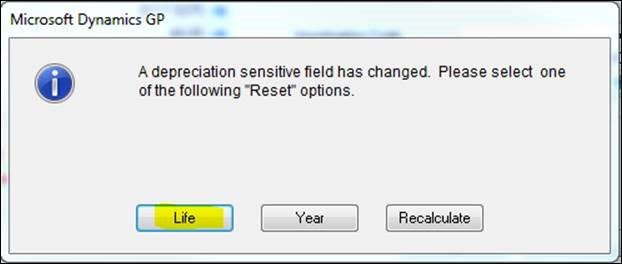
This option selected will back out all the depreciation that had previously been posted and calculate the new depreciation rates based on the new value.

  • Run the Depreciation routine through the last period where depreciation had been run most recently.
  • Run the GL Posting routine to book the GL activity backing out and incorporating the new cumulative depreciation amounts on the same GL entry; the net amount will reflect any differences between what had been booked versus what should have been booked to the GL as a catch-up entry.
  • Look up and review the fixed assets batch within the Financial series (Transactions >> Financial >> Batches).
  • If everything looks to be in order, post the batch.

For more information about Dynamics GP or any other product in the Dynamics pantheon, please reach out to us at Support@BondConsultingServices.com or click here to schedule a free consultation with one of our experts!


Other articles

What Copilot “Cowork” Means for Business Users

Zoltan Orban

|

March 26, 2026
Microsoft recently introduced Copilot Cowork, and I wanted to take a closer look at what it represents in practical terms, especially for business users working across Microsoft 365 and related…

Why CRM Data Quality Matters More Than Data Volume

Marisa Mini

|

March 24, 2026
A database of 100,000 messy, outdated records is far less valuable than 5,000 that are clean and accurate. Companies often obsess over data volume. But when more data is prioritized over…

From Reactive to Predictive: AI in Business Central Distribution

Zoltan Orban

|

March 19, 2026
Most distribution teams don’t lack reporting. If anything, they often have too much of it. Dashboards, planning worksheets, inventory reports, and KPIs are readily available inside Dynamics 365 Business Central. Yet…

AI Agents in Business Central: How the Payables Agent Works

Jennifer Ryan

|

March 17, 2026
If you're curious how AI agents in Microsoft Dynamics 365 Business Central actually work, we're hosting a live walkthrough of the Payables Agent on March 26. See live how the agent…

Migrating 1.3 Million CRM Records in Dynamics 365: Why We Used a Custom Console App

Marisa Mini

|

March 5, 2026
A government client needed to restructure 1.3 million contact records in Microsoft Dynamics 365 CRM. At that scale, traditional UI tools and flows can throttle, fail silently, or leave a…

AI Agents in Manufacturing ERP: D365 Business Central Guide

Seetharaman Andiappan Rajaram

|

March 4, 2026
AI agents are now live inside Microsoft Dynamics 365 Business Central. For manufacturers evaluating AI in ERP systems, the practical question isn’t what an agent is it’s how AI agents…



