AI vs Automation for Manufacturers | June 16

November 29, 2023

How-to control access to Smartlist in Dynamics GP

SmartLists in Dynamics GP are saved queries that allow users to quickly and easily access specific information within the system. They can be used to filter and display data from a variety of tables, including customers, vendors, transactions, and items. SmartLists can be customized to meet the specific needs of each user, and they can be shared with other users. One of our recent Dynamics GP clients inquired about a way to assign a specific SmartList to a user. To give a user access to only a specific subset of SmartLists, you will need to create a new Security Role and assign that to the user. To do so, you may follow the steps below:  

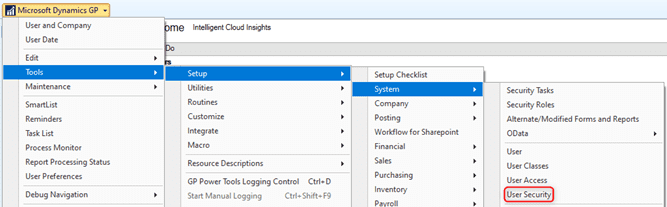
  1. Navigate to Microsoft Dynamics GP > Tools > Setup > System > Security Tasks.
  2. On the Security Tasks Setup window, you may create a new Task ID by populating the following:  
    • Task ID: The Name for the Task 
    • Task Name: The Name for the Task 
    • Product: SmartList 
    • Type/Series: SmartList Object(s) 
    • User Type: Full
      You may mix and match the security based on the SmartList’ s name per the example below. 
  3. Click Save.
  4. Navigate to Microsoft Dynamics GP > Tools > Setup > System > Security Roles
  5. Populate the following information on the Security Roles:
    • Role ID: Set a name for the Security Role
    • Role Name: Set a name for the Role
      Here you can check the Security Task that was just created.
  6. Click Save.
  7. Lastly, you may navigate to Microsoft Dynamics GP > Tools > Setup > System > User Security.
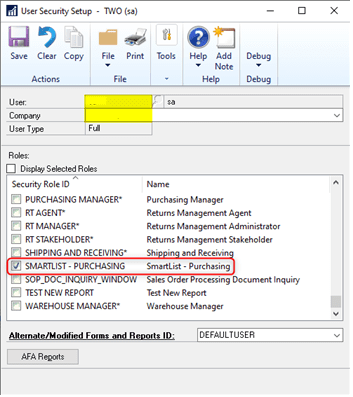
  8. Then, you may select the User as well as the company to which you’d like the access to be set up for and then you may select the newly created security role. 
  9. Click Save once more, and you’re finished.

For more information and assistance, please contact Support@BondConsultingServices.
Other articles

Microsoft’s New Expense Agent Simplifies Business Central Expense Reports

Clayton Jones

|

May 28, 2026
Most expense management improvements over the years have been incremental. Better OCR. Faster receipt capture. A mobile app instead of a desktop form. The underlying workflow stayed the same: employee…

When Does Dynamics 365 Business Central Need Power BI?

Clayton Jones

|

May 20, 2026
Thanks to Dynamics 365 Business Central, your processes have been streamlined, your finances smartly managed, and your sales cycle enhanced. Your business has been running so smoothly that you’ve finally…

From Power Automate to Microsoft Copilot: Where Workflow Automation Ends and AI Assistance Begins

Zoltan Orban

|

May 19, 2026
Webinar: AI or Automation? How to Know What Your Manufacturing Business Actually NeedsJune 16 @ 11:00 AM PT/2:00 PM ETRegister Now!Most operational problems are not as simple as “add AI.”…

Project Online Retirement: What Businesses Need to Do Before September 2026

Daniel Dix

|

May 7, 2026
For years, Project Online, Microsoft’s cloud-hosted project and portfolio management (PPM) solution, built on SharePoint Online has played a central role in enterprise environments, supporting everything from detailed scheduling to…

Microsoft Dynamics 365 Business Central Implementation Packages

Clayton Jones

|

April 29, 2026
If you’re like 99% of our clients, you’re trying to rein in the soaring costs of technology. It’s a delicate balancing act. On the one hand, you understand that you…

Doing More With the Team You Have: What BCS is Changing with AI

Jackie Gant

|

April 29, 2026
AI is everywhere right now, but what feels different is the pace. For the first time in a long time, small and mid-sized businesses are adopting new technology just as quickly…