See Microsoft 365 Copilot in action across Outlook, Teams, Excel + more.

November 29, 2023

How-to control access to Smartlist in Dynamics GP

SmartLists in Dynamics GP are saved queries that allow users to quickly and easily access specific information within the system. They can be used to filter and display data from a variety of tables, including customers, vendors, transactions, and items. SmartLists can be customized to meet the specific needs of each user, and they can be shared with other users. One of our recent Dynamics GP clients inquired about a way to assign a specific SmartList to a user. To give a user access to only a specific subset of SmartLists, you will need to create a new Security Role and assign that to the user. To do so, you may follow the steps below:  

  1. Navigate to Microsoft Dynamics GP > Tools > Setup > System > Security Tasks.
  2. On the Security Tasks Setup window, you may create a new Task ID by populating the following:  
    • Task ID: The Name for the Task 
    • Task Name: The Name for the Task 
    • Product: SmartList 
    • Type/Series: SmartList Object(s) 
    • User Type: Full
      You may mix and match the security based on the SmartList’ s name per the example below. 
  3. Click Save.
  4. Navigate to Microsoft Dynamics GP > Tools > Setup > System > Security Roles
  5. Populate the following information on the Security Roles:
    • Role ID: Set a name for the Security Role
    • Role Name: Set a name for the Role
      Here you can check the Security Task that was just created.
  6. Click Save.
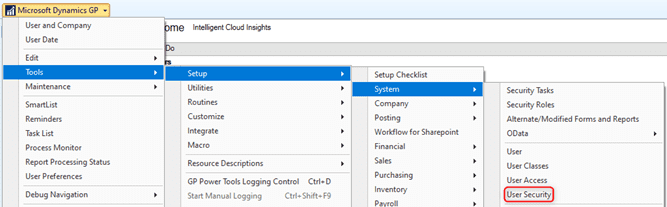
  7. Lastly, you may navigate to Microsoft Dynamics GP > Tools > Setup > System > User Security.
  8. Then, you may select the User as well as the company to which you’d like the access to be set up for and then you may select the newly created security role. 
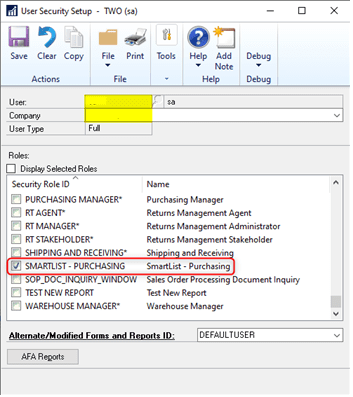
  9. Click Save once more, and you’re finished.

For more information and assistance, please contact Support@BondConsultingServices.

Share On: 

Other articles

How to Connect Power Pages & D365 Customer Engagement for a Seamless Self-Service Experience

Marisa Mini

|

December 4, 2025
Power Pages for Customer Service, Field Service, and Sales PortalsCreating a seamless, modern customer experience starts with reducing the back-and-forth. If your customers (or vendors, partners, applicants, members, etc.) still…

How to Tell if Your Distribution Business Has Outgrown Its Systems

Jennifer Ryan

|

December 1, 2025
As a former Controller inside a fast-moving distribution business, I learned this lesson the hard way: You don’t realize your system is breaking until growth exposes every weakness.It doesn’t happen…

Why Microsoft Killed Social Posting (And Why SMBs Should Care)

Jackie Gant

|

November 25, 2025
When Microsoft quietly pulled the plug on social posting in Dynamics 365 Customer Insights late last year, few in the small to mid-sized business (SMB) space raised an eyebrow. After…

Design Smarter, Present Better: How Microsoft 365 Copilot in PowerPoint Transforms Productivity

Joel Trinidad

|

November 20, 2025
Part of our “Work Smarter with Copilot” series — exploring how Microsoft 365 Copilot transforms productivity across Outlook, Teams, PowerPoint, Excel, and more.The Presentation Problem We All Know Too Well The blinking cursor,…

How Microsoft 365 Copilot in Teams Helps You Work Smarter (and Recover Lost Time)

Joel Trinidad

|

November 18, 2025
Part of our “Work Smarter with Copilot” series — exploring how Microsoft 365 Copilot transforms productivity across Outlook, Teams, PowerPoint, Excel, and more.The Communication Overload Holding Teams Back We’ve all felt it—the…

Free vs Paid: How Microsoft 365 Copilot Unlocks Real Productivity ROI

TJ Sedarski

|

November 13, 2025
Part of our “Work Smarter with Copilot” series — exploring how Microsoft 365 Copilot transforms productivity across Outlook, Teams, PowerPoint, Excel, and more.Copilot Free Chat is a good place to start in…