Are you regularly running reports in Business Central, and hate that you need to change the same options each time? You are not alone, and there is a solution for that if the Report does not have the “Use default values from” option enabled:


For example, for the second Report, you need to change the options each time, and chances are you will end up trying a few times until you get what you want, or you will add it to your cheat sheet to change the options accordingly. With Report Settings, you can make that Report remember your options.
Report Settings
Luckily for many, Business Central has a page to store default and custom settings and the same place used to save “Last used options and filters”.
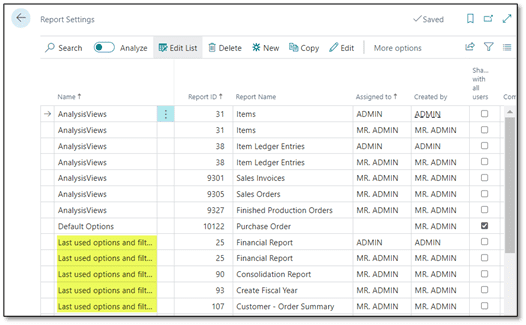
Search Report Settings and follow these instructions to add your custom or default settings for your Report; it takes about 10-30 seconds to set it up and will save you time in the future.
For example, you always run the Aged Accounts Payable Report and need to change the same options each time as Business Central might not remember them, and the option to save “Last used options and filters” is not available.

Steps to Define Your Default Report Options and Filters
- Launch the Report you want to define, for example, “Aged Accounts Payable“.
- Click on Report Layout’s ellipsis to open the list of Report Layouts, note the Report ID, and close the list with Cancel.

- Note and change the options you usually change and click on Preview or Print to ensure you get the expected results.

- Use the key combo “Alt + Q ” to search “Report Settings” and open it.
- Use the Search box to find, for example, “Aged Accounts Payable.” the first time, you will get no results with your User ID under “Assigned to”.
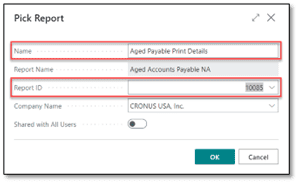
- Click New to pick the Report.
- Enter a name to identify the Report and the usage, for example, “Aged Payable Print Details.”
- Select the Report ID, start typing the report names, and validate that the Report ID is what you noted previously.
- Leave the suggested Company Name; if you have multiple companies, you will need to repeat this process for each company.
- Select whether you want to share it with all users or not and click OK.
- The Report launch page opens; change the options as needed, add or predefine some of the filters, and click OK.
- Run the Report to validate that the “Use default values from” option is available. If you click on that field, the dropdown list should show the name you added. Select it, and the report options will change to what you selected when defining the Report Settings.

The next time you run the same Report, select your options from the Dropdown list or change them again, and Business Central will save your selections to “Last used options and filters.” From now on, this Report will behave like most reports where that option is enabled by default, and there will be less trial and error to see which options change which settings to suit your needs.If you need to edit the defined options, use the Edit option in the Report Settings page and click OK to save the changes.For any questions you have about changing default report runs or how to optimize your Dynamics 365 Business Central investment, please reach out to Support@BondConsultingServices.com or you can click here to schedule a free consultation.