

If you have discovered that unwanted transactions have been posted in Business Central’s production environment, it is very easy to restore Business Central to a point in time prior to this emergency.
In fact, a Business Central administrator can restore to a certain point in time as far as thirty days in the past using the Business Central Administration Center.
Restoring from a backup can eliminate the hours or even days that may be incurred in implementing “fixes” or workarounds.
Prior to restoring a production environment, follow these steps in the Administration Center:
- Rename the original production environment (for example, MyProdEnv-DONOTUSE).
- Make a point in time restore of the original environment into a new production environment with the original name (MyProdEnv).
To conduct this point in time restore, follow these steps in the Administration Center: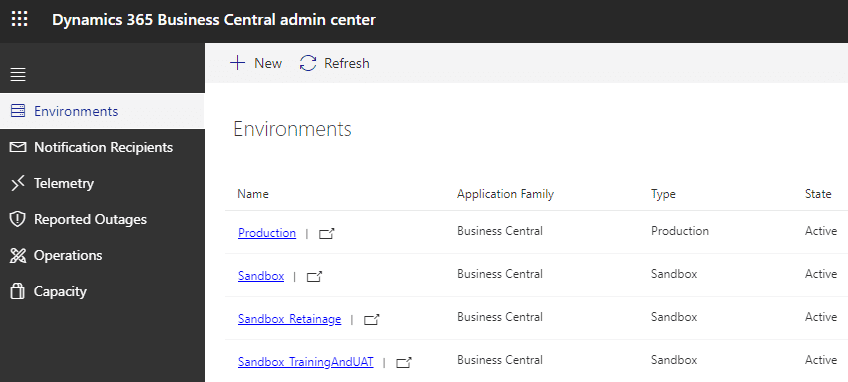
- Select Environments, then, open the environment you want to restore.

- Select Restore at the top of the page.
- In the Restore Environment pane, specify the date and time in the past to which you want to restore the environment.
- Select the type to be used for the restored environment.
- Specify a name for the restored environment.
- Select Restore.
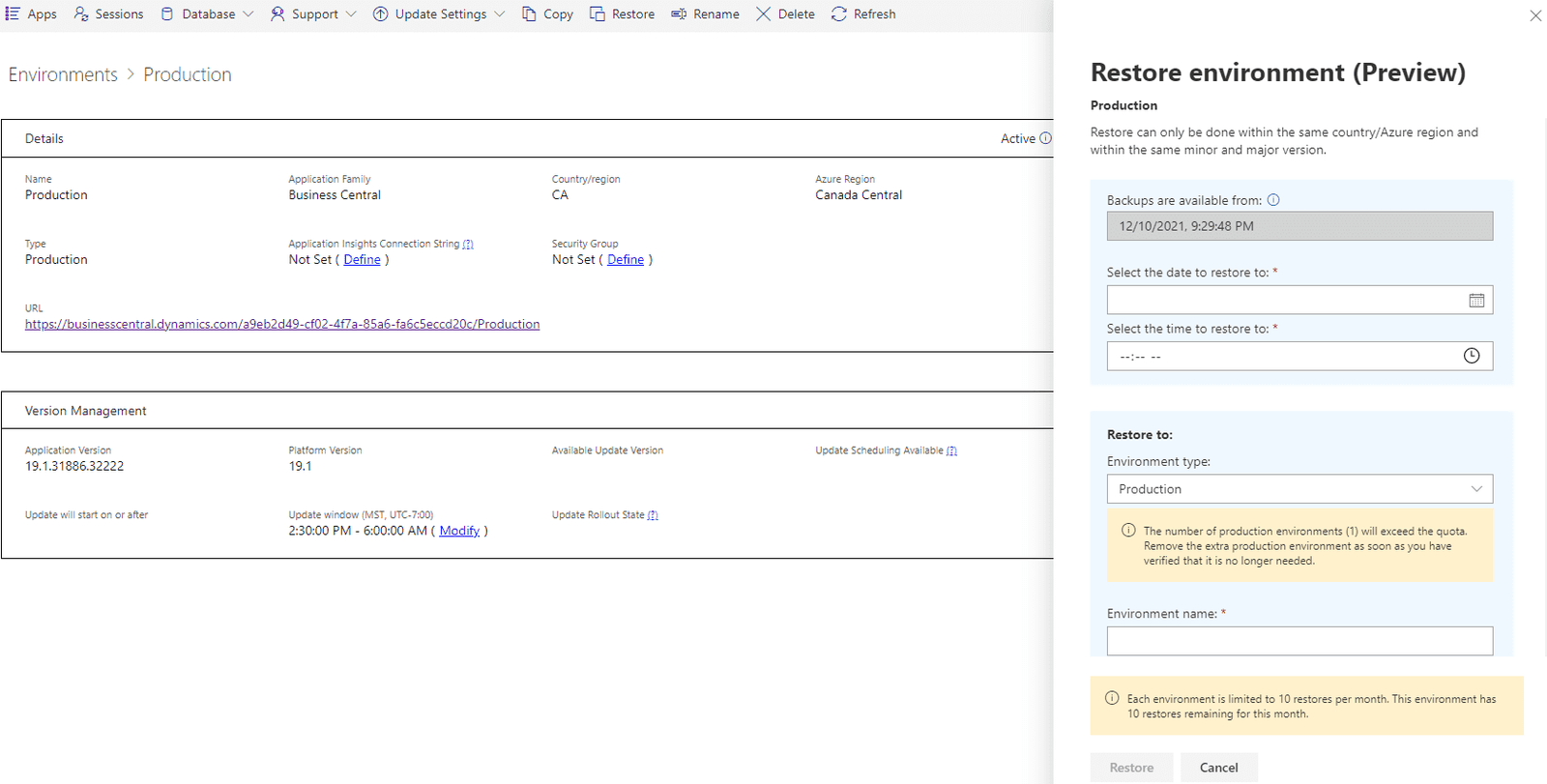
If there’s no backup available for date and time you chose, select the available nearest backup when prompted. This situation can occur, for example, if the environment was being updated to a new minor or major version during the specified time.
When the process starts, you can go to the list of your environments and see the status of the restored environment. At first, you’ll see the new environment with state Preparing. The original environment state remains as Active.
Once the restore is completed, the environment state will change to Active. If the restore operation fails, you can find the failure details on the Operations page. In this case, delete the failed environment and then try to restore again. Contact Microsoft Support, if the issue persists.
IMPORTANT NOTES
- You can restore your production environment into a new production environment, even if doing so results in exceeding your number of environments or database capacity quotas. You can however only exceed this quota by one extra production environment, regardless of how many production environments you have available for your subscription. You must return to within your quota within thirty days following the restore, by either removing the original production environment or by purchasing an additional production environment. Before removing the environment, we recommend you export the environment to an Azure storage container in case you need to access some data at a later point. In our example from earlier, you will need to delete the “MyProdEnv-DONOTUSE” environment in the Administration Center.
- Per tenant extensions that you may have uploaded that target the next version of Business Central will not be available in the restored environment, even if they were uploaded at the point in time that you are restoring to. Per tenant extensions that were already installed will be available in the restored environment.
- Every AppSource and Business Central application in the restored environment will have the latest available hotfix, even if the hotfix was introduced after the point in time that you are restoring to.
- System backups are managed directly by Microsoft and are produced continuously by the Business Central service, called Azure SQL Database. These database backups are kept for twenty-eight days.
- The number of restore attempts will be limited to ten attempts per environment and per month.
- The duration of the restore operation is affected by several factors. For small environments, the restore will likely take less than an hour. For large or highly active databases, the restore might take several hours.








