


Article by: Lupe Haro – Microsoft Dynamics ERP Consultant
To make the year-end process smoother, we have provided the following information on how you can run the year-end close process within Dynamics 365 Business Central.
Accounting Periods
To be able to run the year-end close process you must first close the year within the accounting periods window.
Closing Accounting Period
Choose the light bulb icon, enter Accounting Periods and choose the highlighted link.

In the Accounting Periods window select Process > Close Year

Click Yes on the warning

(NOTE: Although the year has been closed, this does not restrict users from posting to a prior year. Users will still be able to post to a past year if they are allowed to within the General Ledger Setup or User setup Posting to and from fields.)
The accounting periods for the marked year will now show as “CLOSED”

Creating a new Accounting Period Year
This step is optional if the new accounting year has not been setup. If it has already been set up, please skip this section.
In the Accounting Periods window select Process,> Create Year

In the Edit – Create fiscal year window, enter the new year’s starting date, number of periods, and period length.

Click Ok to create the year

Chart of Accounts
Before continuing the year-end process, it is important that you check the “Income/Balance” field in all your accounts to confirm they are set up correctly. The close income statement process will determine which accounts will roll up to retained earnings (Income Statement accounts) and which accounts’ balances will roll over to the new year (Balance Sheet accounts).
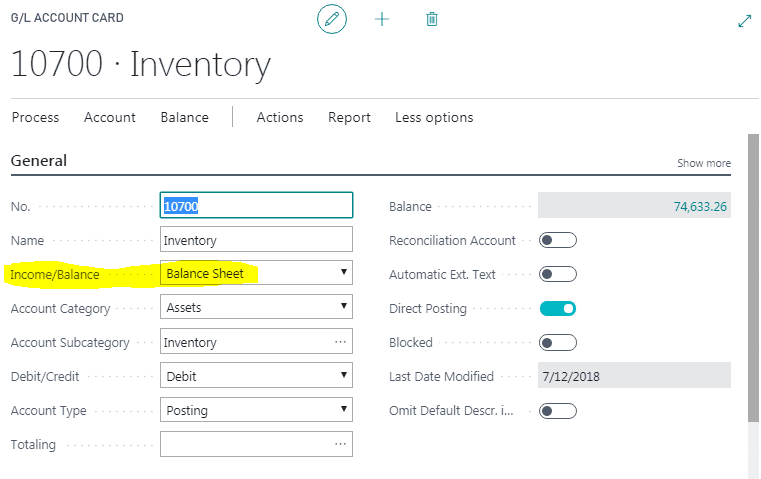
Close Income Statement
Choose the light bulb icon, enter Close Income Statement and choose the highlighted link.

In the Edit – Close Income Statement window, populate the fields as follows
- Fiscal Year Ending Date: Will populate with the last date of the closing year.
- Gen Journal Template: GENERAL
- Gen Journal batch: You can select an existing batch or create a new batch.
- Document No.: Will populate automatically with the next document no.
- Retained Earnings Acc.: Enter your retained earnings account
- Posting Description: Default message is “Close Income Statement” but can be changed if needed.

In the Close By section:

- Business unit code – Mark this option if you are running the close in a consolidation company and want to close by the business unit (company).
- Dimensions – If dimensions are used, click on the “….” to select the dimension codes that you would like to close by. This will create close entries for each Income Statement GL account by dimension.

- Inventory Period Closed – mark this option if you want the inventory periods within the fiscal year ending date to be closed when running this process.
Click Ok. Business Central will then start the creation of the closing journal entries in the batch listed in the Edit – Close Income Statement window.
Post Closing General Journal Batch
Under the Finance menu select General Journals or choose the icon and enter General Journals.

Select the batch that you entered in the Edit – Close Income Statement window.

Closing entries will be marked with a “C” in front of the date. You can then review the transactions and confirm all is correct.
When ready to post click on Process > Post.