

Capturing and extracting data is one of the primary functionalities of Business Central. Being able to easily find your most important business data boosts employee’s everyday efficiency and allows for informed decision-making. Business Central also offers export options that allow you to extract data for analysis in specialized tools. Here are a few of the top ways to find specific data in Business Central.
Edit in Excel
Likely, the simplest and most versatile method of extracting data is using Edit in Excel in List windows such as Customer Ledger Entries. Not only can you export data and create Microsoft Excel pivot tables and charts, but the data is also refreshable. Data in Excel will be updated upon reopening its workbook at any point in time. 

Exporting from Business Central Reports
Although the results are static and not refreshable, Business Central allows for data mining by exporting its reports to Excel!
In the case of the “Customer – Order Detail” report, sending to “Microsoft Excel Document (data only)” will allow you to create a professional looking pivot table and charts.


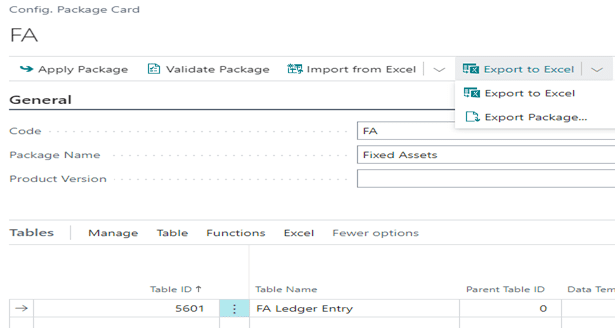
Configuration Packages
Even though its exported Excel workbook is not refreshable, a Configuration Package represents yet another means of creating a meaningful report for modules such as Fixed Assets.

Search Company Data
Simply by using the search button, any sort of master windows or transactions can be found. Just type any piece of data into the search field.
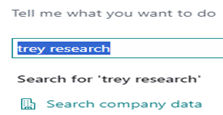
For example, clicking “Search company data” displays hyperlinks for viewing either master or transactional data. 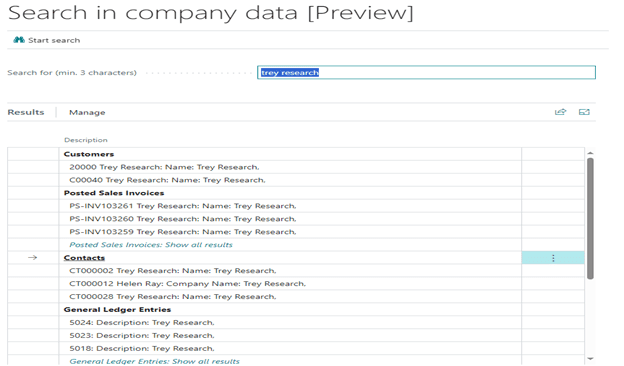
“Find Entries”
Depending on the Role used, the Role Center displays a feature in the “Actions” pane labeled “Find entries…” allowing you to search for any document, business contact, or item reference.
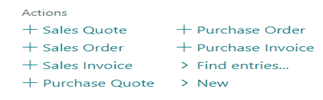 Entering a Posting Date and clicking
  displays hyperlinks for associated documents.

Table Information
Searching on “table information” brings you the full list of tables for Business Central.
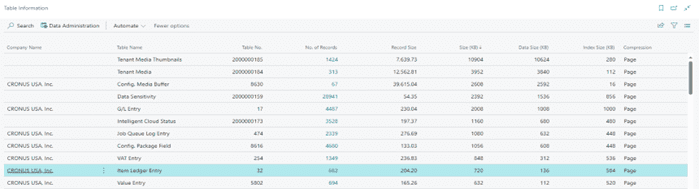
Clicking 682 in the “No. of Records” column of the Table Information window will display the Inventory Subledger, while clicking 694 in the “No. of Records” column of the Table Information window will display Inventory Valuation.
For more information about data mining in Dynamics 365 Business Central, please reach out to us at Sales@BondConsultingServices.com or click here to schedule a free consultation with one of our Dynamics experts. Alternatively, you can visit our YouTube channel for helpful product videos and recorded webinars discussing various Dynamics products’ functionality.








