


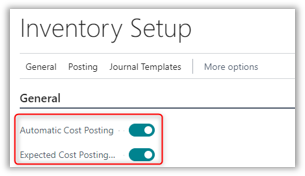
Both settings affect how and when inventory costs are reflected in the general ledger and inventory subledger.
Automatic Cost Posting vs. Expected Cost Posting
Automatic Cost Posting
When enabled, inventory cost is posted to the general ledger automatically during:
- Inventory receipt
- Inventory invoicing
When disabled, inventory cost must be posted manually using Post Inventory Cost to G/L job.
Expected Cost Posting
When enabled, Business Central posts:
- A “Received but Not Invoiced” entry to inventory
- A corresponding entry to an Interim Inventory G/L account
This allows inventory value to be recognized before the vendor invoice is received.
When the invoice is later posted (and the item has not been sold), the interim inventory amount is relieved and reclassified to inventory.
- Both methods impact how inventory costs are reflected in your system. Automatic Cost Posting immediately updates the cost of your inventory when a purchase transaction (receipt) is posted. This ensures your inventory valuation is always current.
- Expected Cost Posting allows you to estimate the cost of purchased items before you receive the actual vendor invoice. This provides a preliminary cost for inventory items, giving you a more complete picture of your inventory value even when invoices are delayed.
Inventory Setup Configuration
Navigate to the Inventory Setup window using the search function in Dynamics 365 Business Central to access these toggled settings:
Automatic Cost Posting
- If toggled ON, inventory cost is posted to G/L during inventory receipt and/or invoicing.
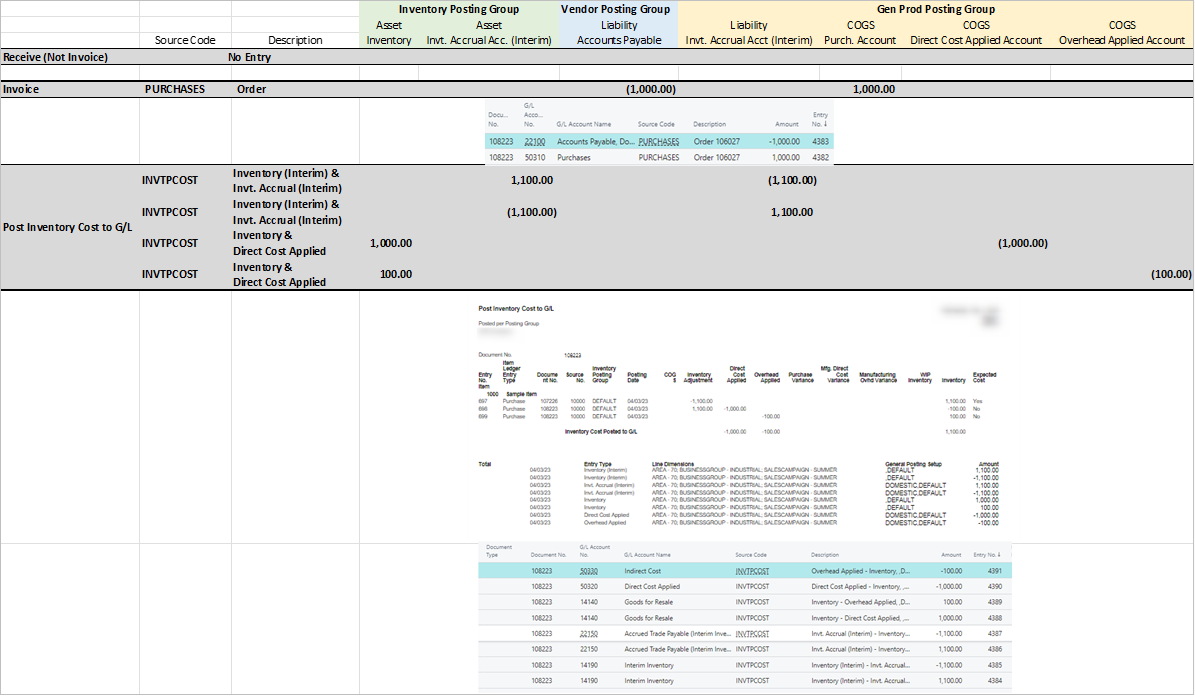
- If toggled OFF, inventory cost is posted through the Post Inventory Cost to G/L job.
Expected Cost Posting
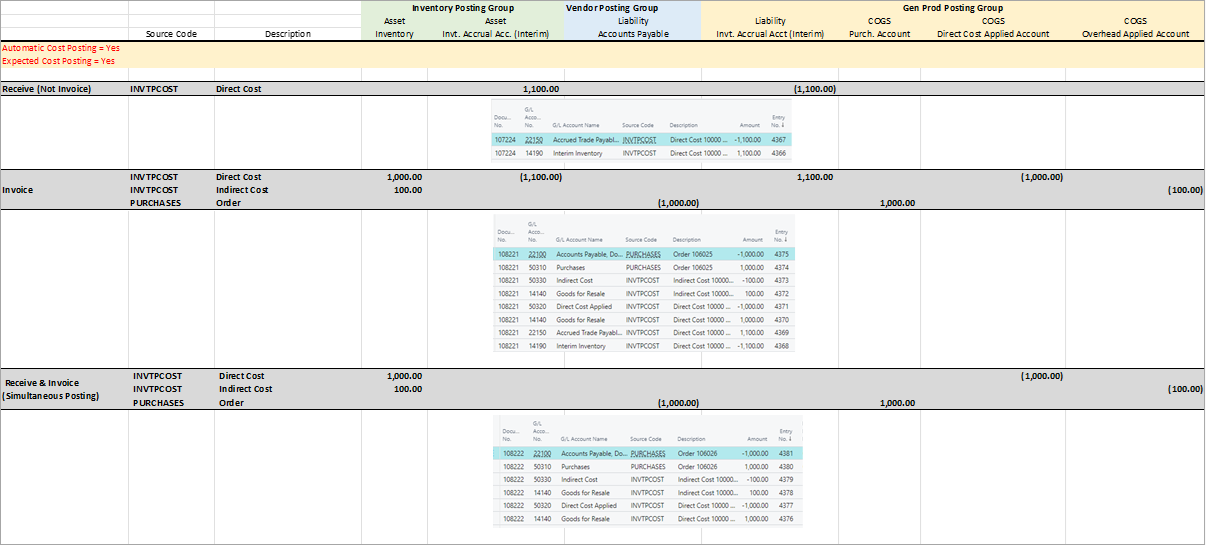
- If toggled ON, a “received but not invoiced” entry is posted to the inventory subsidiary and to an Interim Inventory account when goods are received into stock before the related invoice. In this case, the purchase order cost is booked as an interim inventory value for the item and a corresponding general ledger entry. When the invoice is received (and if the item has not been sold,) the inventory value is relieved from interim inventory and coded to inventory.
- Inventory Subsidiary = Inventory + Interim Inventory (received, not invoiced) G/L Accounts
- The default Interim Inventory account(s) can be the same as the Inventory account(s) or they can be separated and reported together on financials as inventory.
- In the General Product Posting Group, a default G/L account is required for the interim inventory.
- In Business Central
- PO Lines are coded as “Received but not Invoiced.”
- Sub Ledger (Value Entries), the fields that are used are “Expected Cost Posted to G/L” and “Cost Amount (Expected)” field.
- If Expected Cost Posting is toggled OFF, cost is posted during invoicing.
Automatic Cost Posting = Yes, Expected Cost Posting = Yes
Automatic cost Posting = No, Expected Cost Posting = Yes
Here are some helpful articles from Microsoft for more information:
- Design Details – Expected Cost Posting – Business Central | Microsoft Learn
- Design Details – Accounts in the General Ledger – Business Central | Microsoft Learn
Why This Matters During Business Central Implementation
Inventory costing behavior and posting logic are typically validated during a
Business Central implementation to ensure interim inventory, COGS, and valuation align with accounting and audit requirements.
Need Help with Inventory Costing Setup?
If you have questions about expected cost posting, interim inventory, or valuation behavior in Dynamics 365 Business Central, our team can help review your configuration and posting setup.




