Microsoft Copilot $21 now $18/user/month + 1 month free

July 29, 2022

How to Copy and Paste Data from Excel into Business Central

Dynamics 365 Business Central allows users to quickly copy and paste data from Microsoft Excel directly into the General Journal, saving time and reducing manual entry errors.

This article outlines the correct process and common pitfalls to avoid.

Important Setup Notes

Before copying data from Excel:

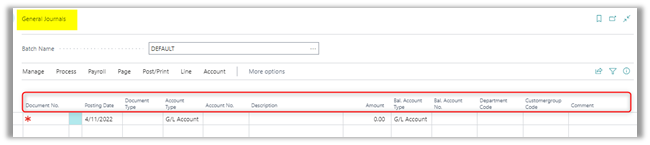
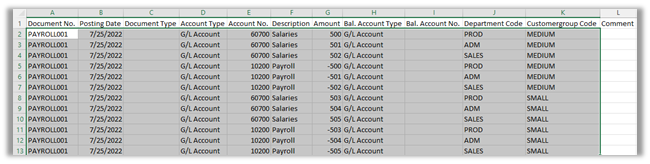
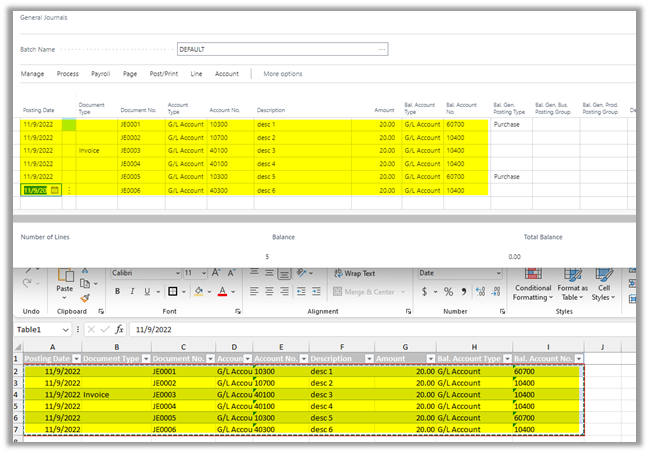
  • Create an Excel worksheet with the same column layout as the Business Central General Journal
  • The General Journal can be personalized to match required fields
  • Dimension Codes must appear after the Account No. / Bal. Account No. fields
    • If an Account No. or Bal. Account No. is entered after dimensions, the dimension values will be cleared

Copying Data from Excel into Business Central

  1. In Excel, select the data to be copied to Business Central and right click to copy ( or use CTRL + C).
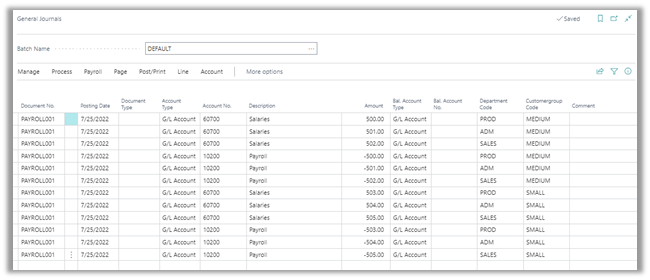
  2. Select the leftmost cell on an empty line on the Business Central General Journal and right click to Paste (or use CTRL + V).
  • Some or all rows can be deleted and re-imported.
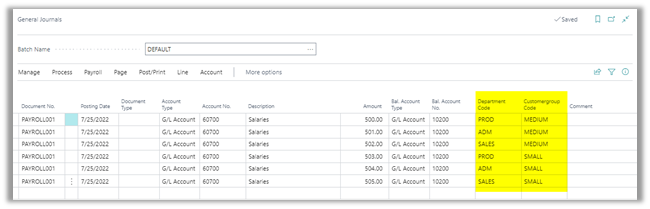
  • The following transaction is the same as above except that the offsetting account 10200 is entered to Bal. Account No. where Bal. Account No., above, is blank

Where This Fits in Business Central Projects

Journal workflows, dimension handling, and data entry processes are often standardized during a Business Central implementation
to improve efficiency and prevent posting errors across finance teams.

Need Help with Journals or Data Imports?

If you have questions about journals, Excel integrations, or financial workflows in Business Central, our consultants are happy to help.

Contact BCS

Other articles

Migrating 1.3 Million CRM Records in Dynamics 365: Why We Used a Custom Console App

Marisa Mini

|

March 5, 2026
A government client needed to restructure 1.3 million contact records in Microsoft Dynamics 365 CRM. At that scale, traditional UI tools and flows can throttle, fail silently, or leave a…

AI Agents in Manufacturing ERP: D365 Business Central Guide

Seetharaman Andiappan Rajaram

|

March 4, 2026
AI agents are now live inside Microsoft Dynamics 365 Business Central. For manufacturers evaluating AI in ERP systems, the practical question isn’t what an agent is it’s how AI agents…

How to Use D365 Business Central Analysis Mode

Carlos Lozano

|

March 3, 2026
Transforming Data into Decisions for Modern Businesses Organizations using Microsoft Dynamics 365 Business Central generate significant volumes of financial and operational data. However, collecting data is only the first step. The…

BCS Partners with RUX Software to Deliver Equipment Rental and Field Service on Business Central

Jackie Gant

|

February 26, 2026
Bond Consulting Services (BCS) has partnered with RUX Software to deliver equipment rental and asset management capabilities for small and mid-sized businesses running on or moving to Microsoft Dynamics 365…

What AI Agents in Dynamics 365 Actually Do (A Plain-English Guide)

Jennifer Ryan

|

February 19, 2026
From Assistance to ActionIf you've been using Microsoft 365 Copilot, you've probably noticed something shift. Email gets drafted faster. Meeting notes appear without you scrambling. Spreadsheet analysis that used to…

D365 Business Central: Realistic AI Agent Scenarios for Operations Teams

Zoltan Orban

|

February 18, 2026
A Practical Look at Where AI Actually Helps in BC TodayThere’s a lot of talk about AI and ERP becoming fully automated. In reality, most teams aren’t trying to replace…