
You’ve released a production order, confirmed the components are in stock and selected Create Warehouse Pick. But Business Central returns the message “Nothing to handle.”
Before digging into warehouse setup or inventory availability, we traced the issue to the Flushing Method on the production order component.
A change to Manual flushing in Dynamics 365 Business Central may explain why a warehouse pick isn’t being created.
What changed with Manual flushing in Business Central 29.0?
Microsoft changed how the Manual flushing method handles warehouse picks. With the updated behavior, there are two options:
- Manual: Allows production consumption to be posted manually without requiring a warehouse pick. This can suit materials that are already stocked on the shop floor.
- Pick + Manual: Supports warehouse pick before consumption. The warehouse team registers the pick, then the production team posts actual consumption separately.
The distinction matters for manufacturers whose warehouse teams pick components before production begins.
If a component uses Manual flushing when the process requires Pick + Manual, Business Central may not generate the expected warehouse pick.
This is one of several manufacturing and warehouse changes introduced with Business Central version 29. For a broader look at the release, see What’s New in Dynamics 365 Business Central 2026 Wave 2
How to fix “Nothing to handle” when creating a production pick
If you’re receiving this message when creating a warehouse pick for a released production order, start by checking the component’s flushing method.
- Open the Released Production Order and select the production order line.
- From the line menu, choose Line → Components.
- Find the raw material that needs to be picked and check its Flushing Method.
- If it is set to Manual and the material needs a warehouse pick, select Edit List and change the component to Pick + Manual.
- Return to the production order, select Create Warehouse Pick, and confirm that the pick includes the expected component and quantity.
I recently encountered this with a customer. The production order was released, and the components were available, but Business Central wouldn’t create the warehouse pick.
Changing the affected component from Manual to Pick + Manual resolved the issue.
Check your default flushing method for future production orders
Fixing the current production order addresses the immediate problem, but it’s also worth checking where the flushing method is coming from.
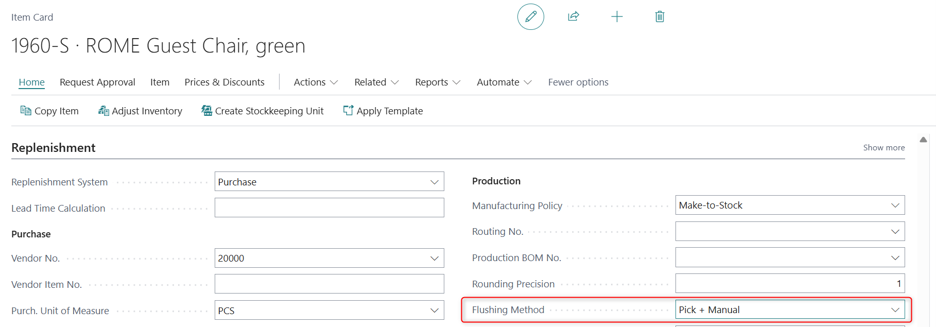
Review the Flushing Method on the component’s Item Card and on any applicable location-specific Stockkeeping Unit (SKU).
These settings help determine the default flushing method used when new production order component lines are created. Confirm that they match how your team handles picking and consumption.
For manufacturers that rely on warehouse picks before production, using Pick + Manual where appropriate can help prevent the same issue on future orders.
Need help troubleshooting Business Central manufacturing?
If you’re encountering unexpected warehouse picking behavior after a Business Central update, BCS can help you review your manufacturing and warehouse setup.
Contact our Business Central team to discuss the issue.