
Have you ever had a user report that a transaction was successfully posted in Microsoft Dynamics 365 Business Central, but they aren’t sure where it went or which entries were created?
When troubleshooting posted transactions, knowing where to look can make a significant difference. One of the most useful built-in tools for this process is Find Entries, formerly known as Navigate.
Rather than manually searching through General Ledger Entries, Customer Ledger Entries, Vendor Ledger Entries, or Item Ledger Entries, Find Entries provides a way to trace the entries associated with a posted document in one place.
What does Find Entries do in Business Central?
When a document is posted in Business Central, different types of ledger entries may be created depending on the transaction. Find Entries helps you locate and review those related records so you can understand what happened during posting.
You can use Find Entries to:
- Trace posted transactions. Identify the different entries created when a document was posted and where they were recorded.
- Review financial impact. Open related General Ledger (G/L) Entries to understand which financial accounts were affected.
- Investigate inventory movements. Review Item Ledger Entries and Value Entries associated with inventory transactions.
- Troubleshoot posting issues. Investigate unexpected postings, missing entries or discrepancies between operational and financial records.
- Identify the source of discrepancies. Review related entries before digging into posting setup, item costs or other possible causes.
How to access Find Entries in Business Central
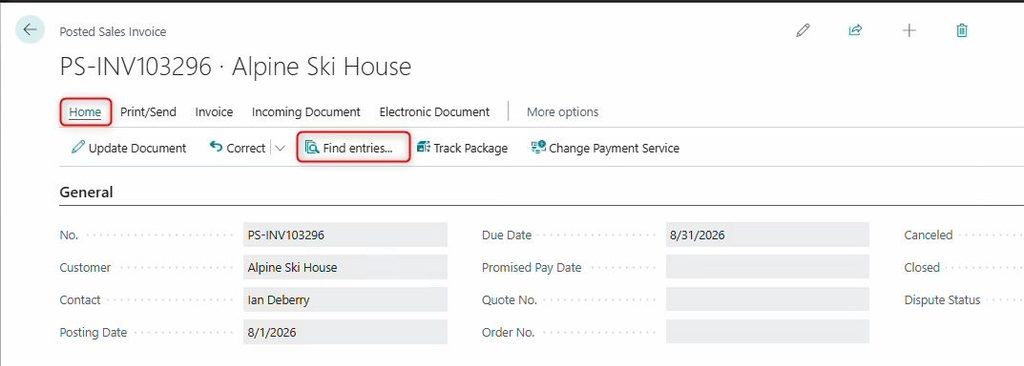
You can access Find Entries directly from a posted document.
Follow these steps:
- Open a posted document, such as a Posted Sales Invoice or Posted Purchase Invoice.
- Select Find Entries from the available actions.
- Business Central displays the related entry types and the number of records found.
- Select an entry type, such as G/L Entry, Customer Ledger Entry or Value Entry.
- Choose Show Related Entries to review the transaction details.
Tip: You can also open Find Entries using Ctrl + Alt + Q or search for it through Tell Me (Alt + Q). From the Find Entries page, you can search using a document number or posting date.
For more informatin, read Microsoft’s Find Entries documentation.
Example: Troubleshooting a posted purchase invoice discrepancy
Consider a situation where a user reports that a posted purchase invoice increased inventory, but the amount recorded in the General Ledger doesn’t match what they expected. Instead of immediately reviewing the posting setup, start with Find Entries to trace the transaction. Review the associated:
- G/L Entries: Understand the financial impact of the posted transaction.
- Item Ledger Entries: Review the inventory movements associated with the purchase.
- Value Entries: Investigate the values associated with the inventory transaction.
Comparing these entries can help identify where the discrepancy may be coming from. Depending on what you find, you may need to investigate item costs, posting groups or cost adjustments.
Start with what Business Central recorded
Understanding how transactions flow through Business Central is just as important as knowing how to post them.
Before changing posting setup or spending time searching through multiple ledgers, use Find Entries to see what Business Central actually recorded. It’s often the fastest way to understand a transaction’s financial impact and determine where to investigate next.
If your team needs help troubleshooting Business Central posting issues or understanding how transactions affect your financials, contact BCS. Our Business Central support team can help.