When working with Edit in Excel in Microsoft Dynamics 365 Business Central, it’s important to understand that this feature is more than a simple export tool. It creates a direct connection between Excel and your Business Central data, allowing updates made in Excel to be published back into the system. Because of this, any changes made and then published will modify live data, so it is essential to proceed with care. If you need to view the most up-to-date information without making changes, the Refresh option can be used to pull in the latest data safely.
Beyond basic use, Edit in Excel also supports additional functionality that enables users to tailor the experience to better fit their needs. Rather than repeatedly exporting, modifying, and publishing data, users can customize the fields and configuration of the Excel file for ongoing use. This approach helps streamline recurring tasks and promotes consistency in how data is managed outside of Business Central.
The following section outlines how to customize the fields and structure of an Edit in Excel file, allowing it to be reused efficiently while maintaining alignment with Business Central data.
1. Export Edit in Excel from Business Central
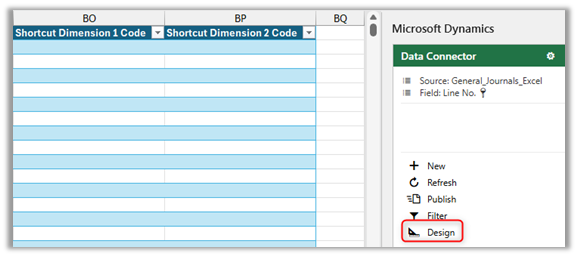
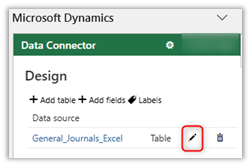
2. In Data Connector, Select Edit (Pencil)
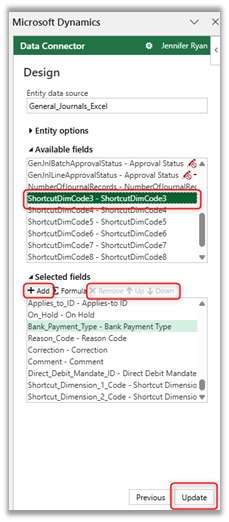
3. To Add Columns, select a column from Available Fields and +Add to Selected Fields. Or Remove Columns or move them Up or Down. Then, Update.
4. Add or Remove filters
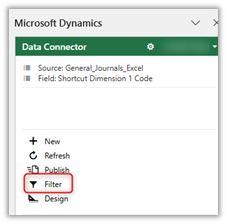
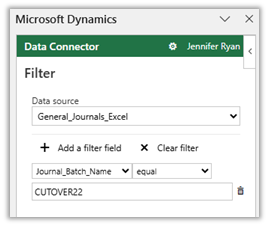
5. Excel → File → Save File
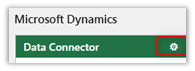
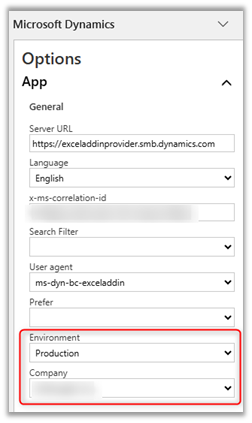
6. To Modify Company
Have Additional Questions? Contact Us Today