See Microsoft 365 Copilot in action across Outlook, Teams, Excel + more.

June 30, 2022

How-To Setup Sales and Inventory Forecasting in Business Central

Microsoft has provided an extension on Sales and Inventory Forecast using Azure AI. Azure AI is already connected to Business Central.

This app is pre-installed in the Business Central cloud version. But it needs to be setup and configured. Once it is setup and configured, it will help us future forecast of the Inventory based on past Sales history.

Step 1: Using the Global search, search for “Sales and Inventory Forecast Setup

Step 2: Set required parameters, Period Type, Horizon, historical Periods, API URI and API Key

Step 3: For this example we will be setting these values.

Period Type: Months

Horizon: 12 (months)

Historical Period: 6 (months)


Continue with these steps to obtain the API URI and the API key.

Step 4: Open Azure AI Gallery

Step 5: Select “Open in Studio (Classic)”
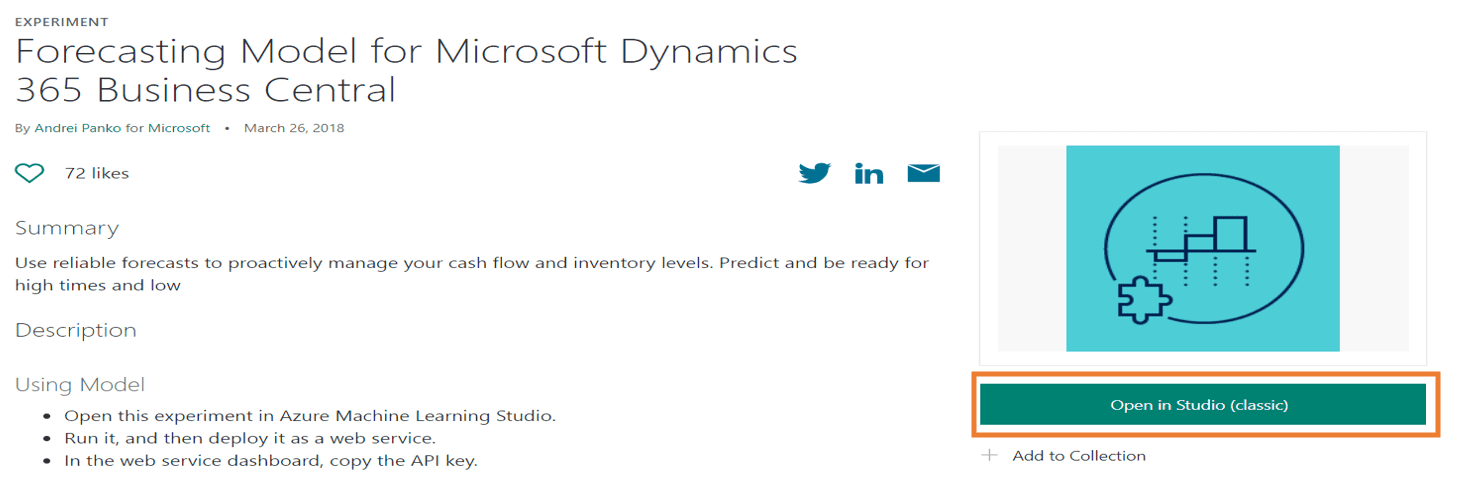
Step 6: Continue into the workspace

Step 7: Here you can see the workflow copied from the gallery.

Step 8: Save the workflow.

Step 9: Select “Run.”

You can see the forecast is queued and then runs in the background.

When it has finished you will see this.
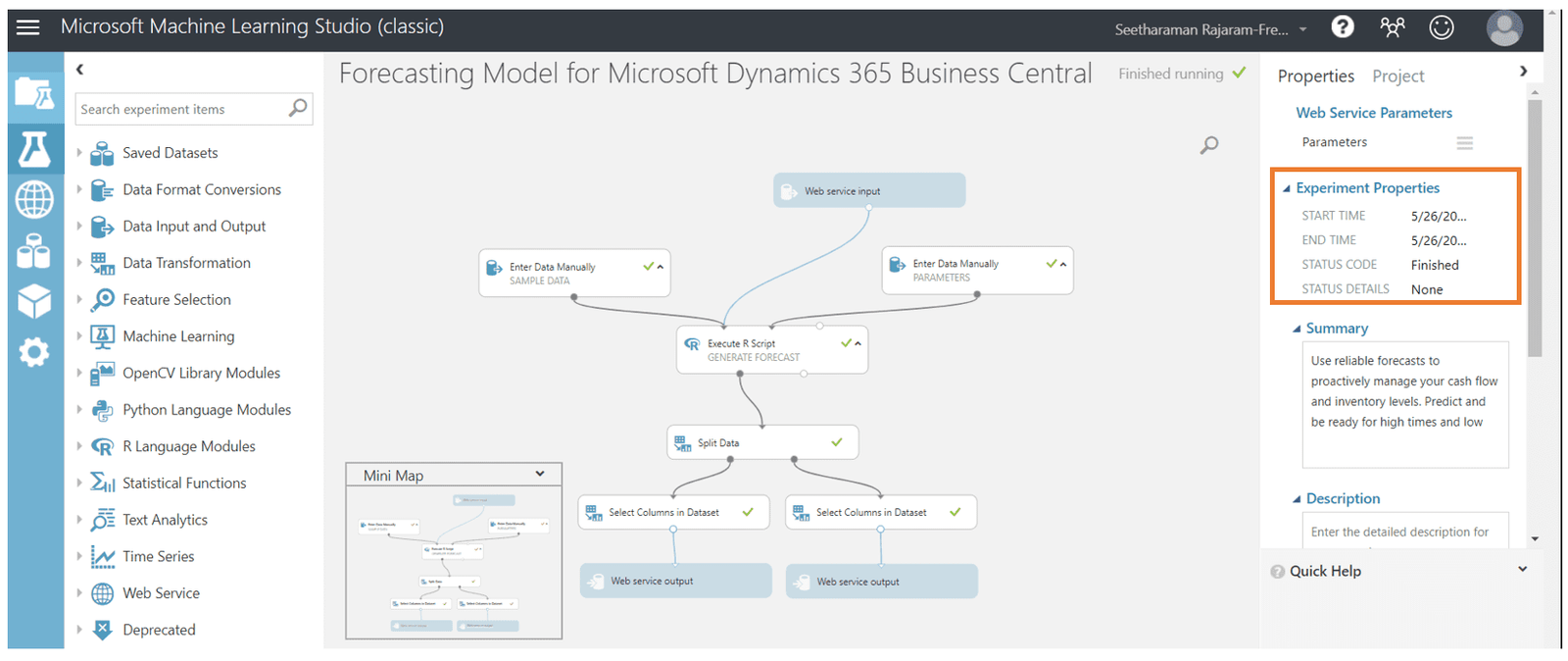
Step 10: Select “Deploy Web Service”

Step 11: Copy the API key

Step 12:  Paste that API key into the Sales and Inventory Forecast Setup window from before.

Step 13: Select Request/Response

Step 14: Copy the API URI from the highlighted box below and paste into the appropriate record in the Sales and Inventory Forecast Setup window from before.

Step 15: After inputting all the correct parameter values, select “Update Forecast” in the Sales and Inventory Forecast Setup window.

Step 16: Now the Calculated Forecast is visible for all inventory items.

For any questions on this process please reach out to us at Support@BondConsultingServices.com or schedule a free consultation with one of our experts.

Share On: 

Other articles

Microsoft 365 Copilot Is Hot! Highlights from Community Summit 2025

TJ Sedarski

|

November 11, 2025
This article is part of our “Work Smarter with Copilot” series—spotlighting the latest Microsoft 365 Copilot updates announced at Community Summit 2025.One message rang loud and clear at this year’s…

How Microsoft 365 Copilot in Outlook Helps You Manage Email Smarter (and Tame Your Inbox)

Joel Trinidad

|

November 7, 2025
Part of our “Smarter Work with Copilot” series — exploring how Microsoft 365 Copilot transforms productivity across Outlook, Teams, PowerPoint, Excel, and more.The Email Overload Holding Teams BackFor most of…

Copilot for Power BI: Your Personal Data Assistant

Joel Trinidad

|

October 30, 2025
Microsoft has been steadily adding AI features to their broad range of business products, and Power BI is no exception. Copilot can be utilized to take full advantage of your…

How to Migrate Fixed Assets from Dynamics GP to Business Central Smoothly

George Rios

|

October 28, 2025
PlanningWhen working on a migration of Dynamics GP fixed assets to Business Central, you will want to identify which fields you want to transfer from one system to another. It…

Introducing the BCS Support Portal

TJ Sedarski

|

October 23, 2025
At Bond Consulting Services, we know how important it is to get help when you need it, and to know where things stand once you’ve asked. That’s why we are…

Announcing Unlimited Support for Dynamics 365

TJ Sedarski

|

October 17, 2025
It's like having an in-house Dynamics team - without the overhead A Smarter Way to Get Support for Microsoft DynamicsWe've listened to your feedback and we're making support simpler, faster, and…



