

Once fixed assets are set up in Dynamics 365 Business Central, users need to process depreciation to properly allocate asset costs over time. Depreciation spreads the cost of fixed assets—such as machinery, equipment, or vehicles—across their useful life for accurate financial reporting.
Required Setup for Fixed Asset Depreciation
Each fixed asset must have:
- A Fixed Asset card with relevant details completed
- A depreciation method and depreciation book code assigned
- A Depreciation Starting Date and number of depreciation years populated
- Confirmation that the asset has been acquired
Once these items are in place, depreciation can be posted in one of two ways.

Two Ways to Post Depreciation in Business Central
Option 1: Calculate Depreciation Automatically
- Search for Calculate Depreciation function in the global search or in the Fixed Assets page select Process > Calculate Depreciation.


- In the Calculate Depreciation window, select the Depreciation Book, FA Posting Date, and other fields. In addition, you can filter by a specific asset, class or subclass. Click Ok.

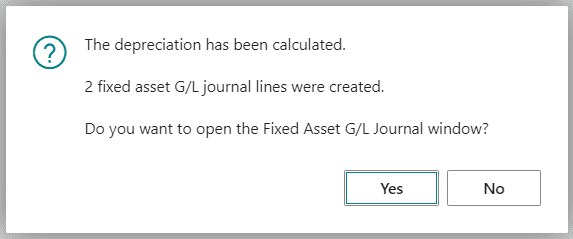
- The batch job will calculate the depreciation and create lines in the fixed asset G/L journal.

- Select Yes or search for Fixed Asset G/L Journal in the global search.

- On the Fixed Asset G/L Journal page, in the of Depreciation Days field, you can see how many days of depreciation has been calculated for.

- Once all the fields are confirmed, select Process > Post to record depreciation in both the FA subledger and general ledger.





Option 2: Post Depreciation Manually Using the Fixed Asset G/L Journal
- Search for Fixed Asset G/L Journal in the global search.

- Create an initial journal line and populate the fields as necessary. In the FA Posting Type field, select Depreciation.


- Select Process > Insert FA Bal. Account A second journal line is created for the balancing account that is set up for allocation posting.

- Choose the Post action to post the journal and record depreciation in both the FA subledger and general ledger.


How This Fits Into Business Central Implementation
Depreciation setup and posting are typically addressed during a Business Central implementation, where fixed asset configuration, depreciation books, and posting rules are defined to align with accounting requirements and reporting needs. Proper setup upfront helps avoid downstream reconciliation issues and manual corrections.
Need Help with Fixed Assets or Depreciation in Business Central?
If you have questions about depreciation, fixed asset setup, or related Business Central processes, our team can help. These workflows are often reviewed as part of broader Business Central implementation or optimization projects, especially when migrating from legacy ERP systems.
For more information about this process or any Dynamics products, click here to schedule a free consultation with our expert analysts.








