

As businesses increasingly rely on data to drive decisions, Microsoft continues to enhance the synergy between Dynamics 365 Business Central (BC) and Power BI. With the release of Business Central Version 26, users now have access to a more seamless, powerful, and intuitive analytics experience.
This blog will go through the process of installing the finance app, which contains the default Power BI reports. Please note that a Power BI Pro license is required to install and use the Power BI Apps.
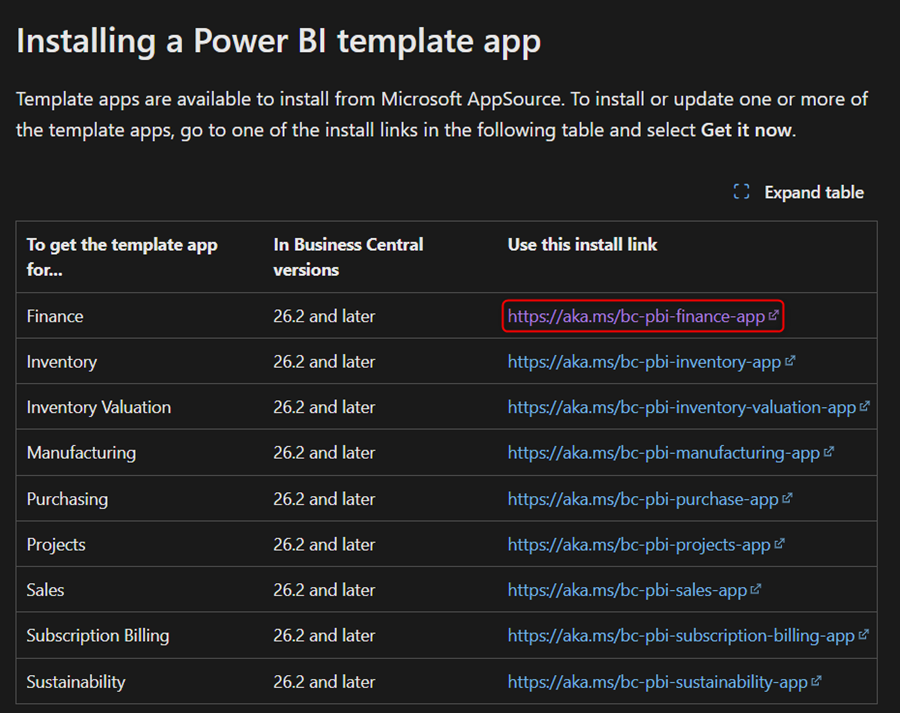
Reports would first need to be installed as apps via Microsoft Appsource. Below is the link Microsoft has provided which will lead to the various Power BI apps in Appsource.
Installing Power BI apps for Business Central – Business Central | Microsoft Learn
The section titled “Installing a Power BI Template App” contains links to the various app store entries for Microsoft’s default Power BI Apps.
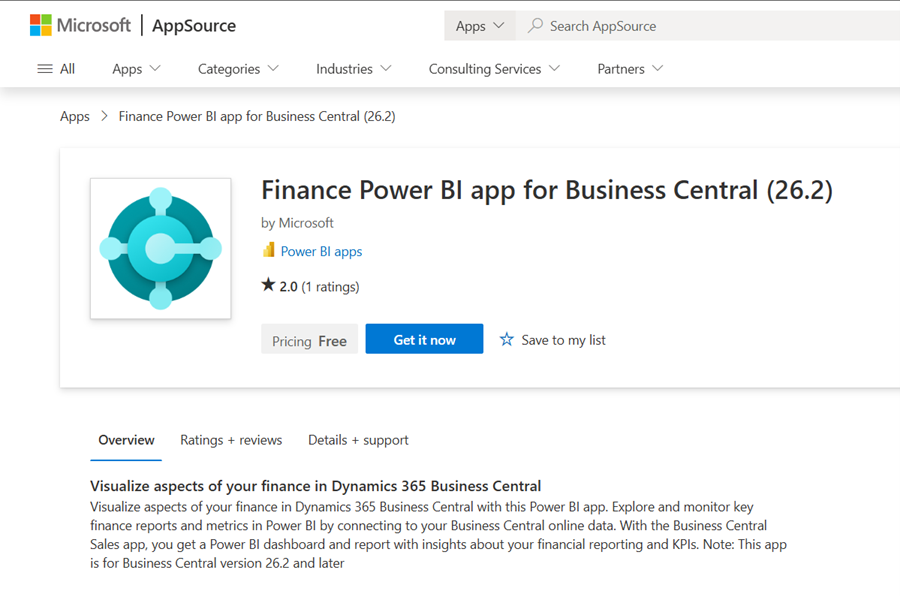
The link should take you to the below page in Microsoft AppSource. Choose the “Get it now” option and install the selected App.
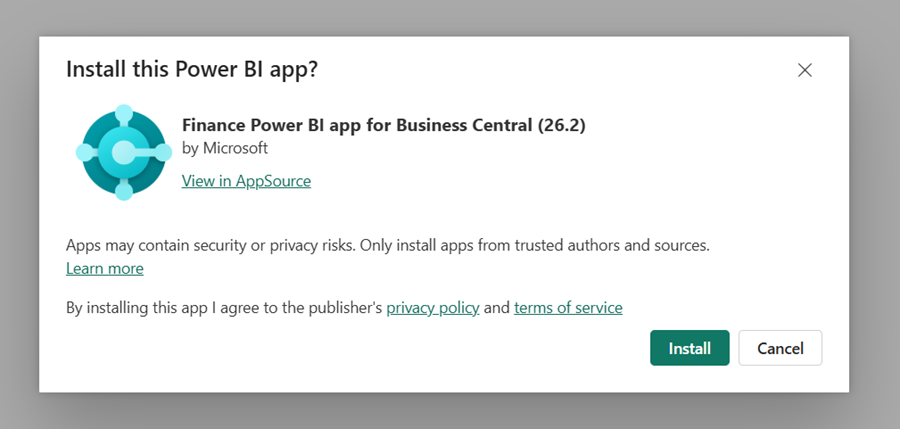
Once the app is installed, you will be able to see it in Power BI Online. Clicking into it will first take you to a version of the report with Demo data. To load in your BC tenant’s data, you would need to click on the “Connect your data” ribbon.

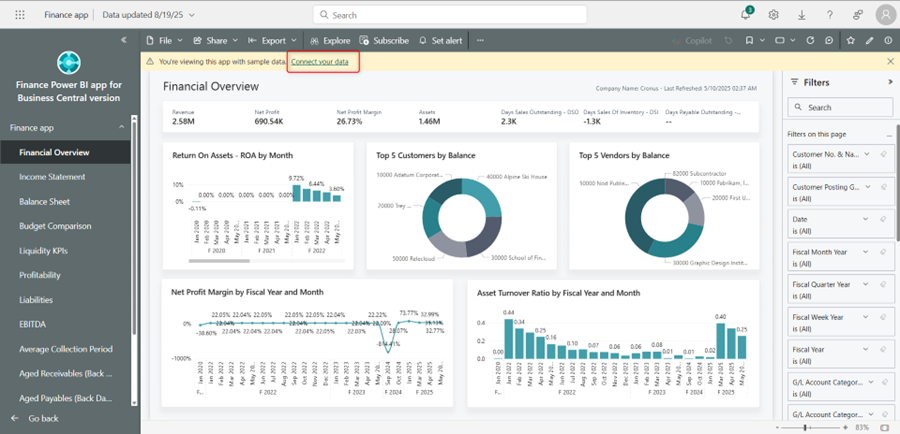
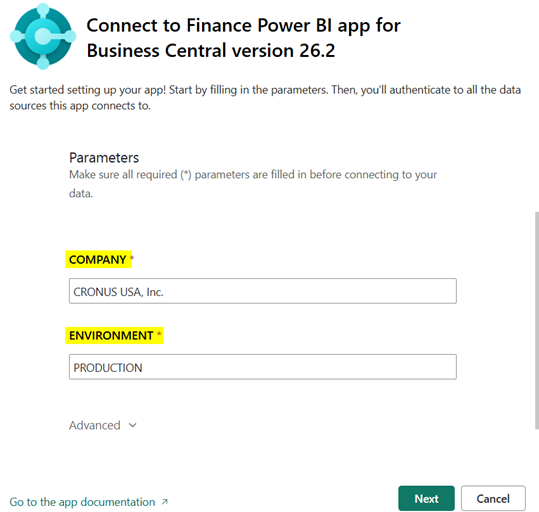
You will need to enter in the Environment and Company name from your tenant’s Power BI setup. You can find this by navigating to the “Power BI Connector Setup” page within the desired Business Central company.

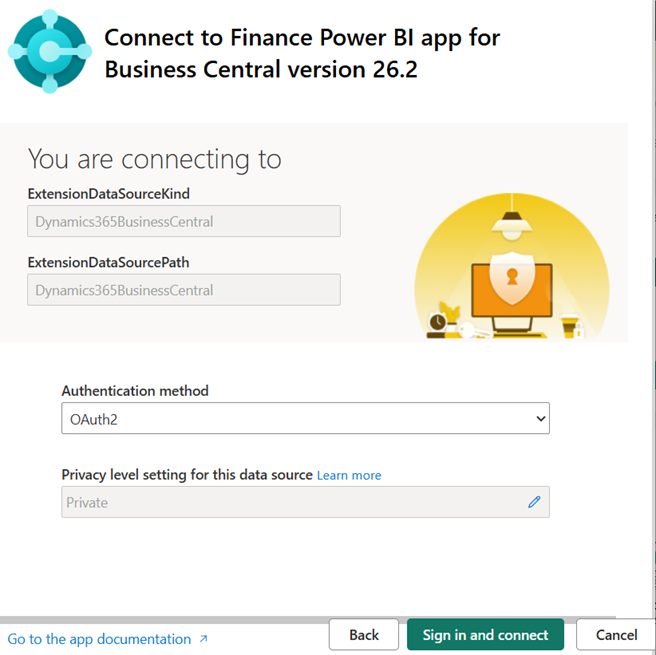
The next page specifies the type of connection. By default Oauth2 is selected. You can set the desired privacy level and choose the “Sign in and Connect” option.
After signing in, the data will automatically refresh. By default it will refresh every day at 12am, but this can be adjusted in the app’s settings.
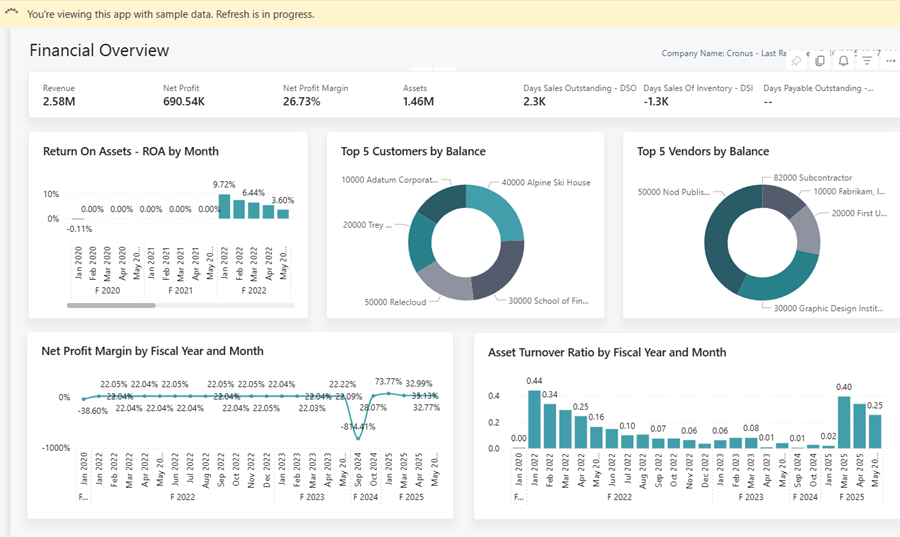
When the report is able to successfully refresh, it will display data from the company whose information you entered. It is now available in Power BI online.
The reports can be made available to view from within Business Central as well. To do so, navigate to the “Power BI Connector Setup” page within BC. You can scroll down to the Finance report and choose the ellipses to select a report. As long as the app is set up and functional within Power BI online, it will be available as an option for connection.
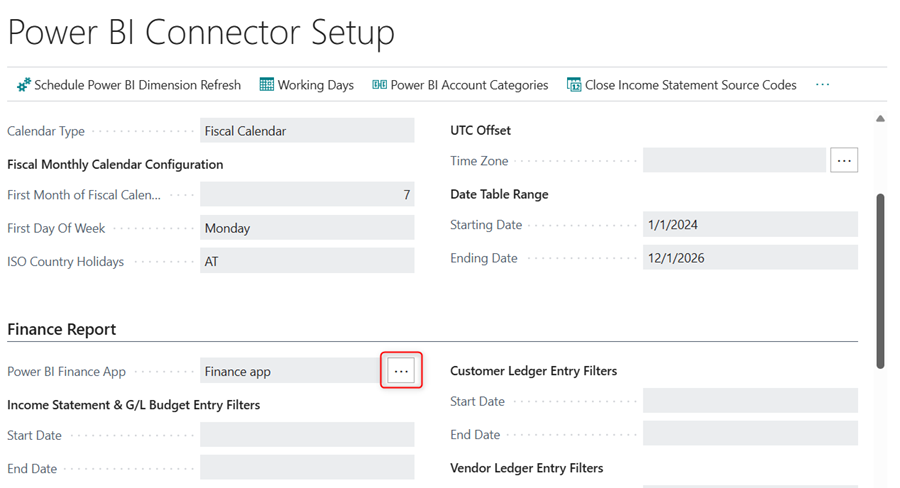
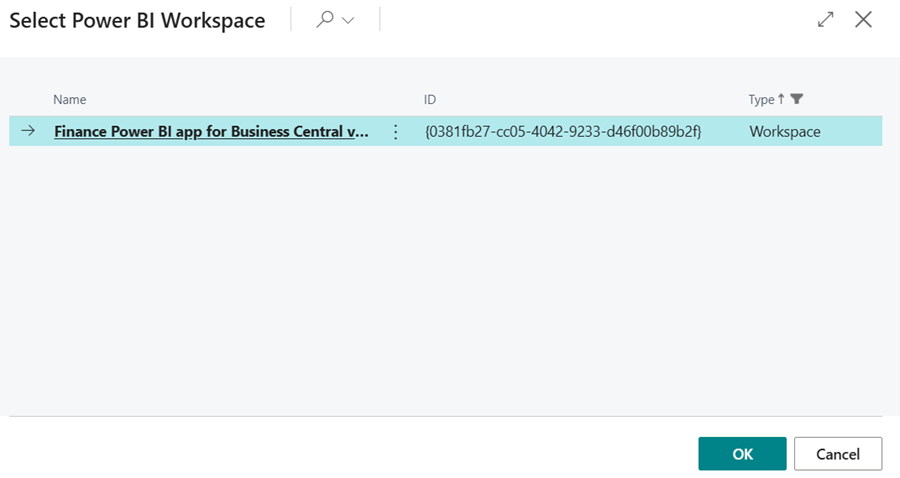
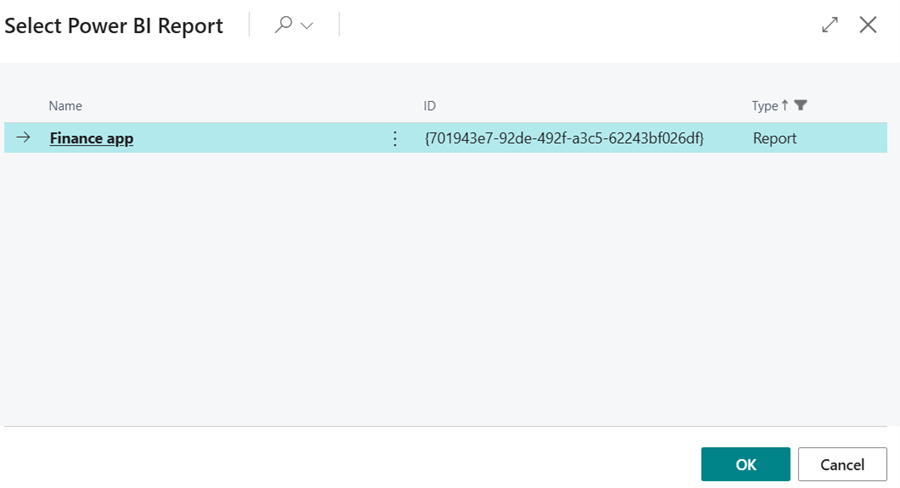
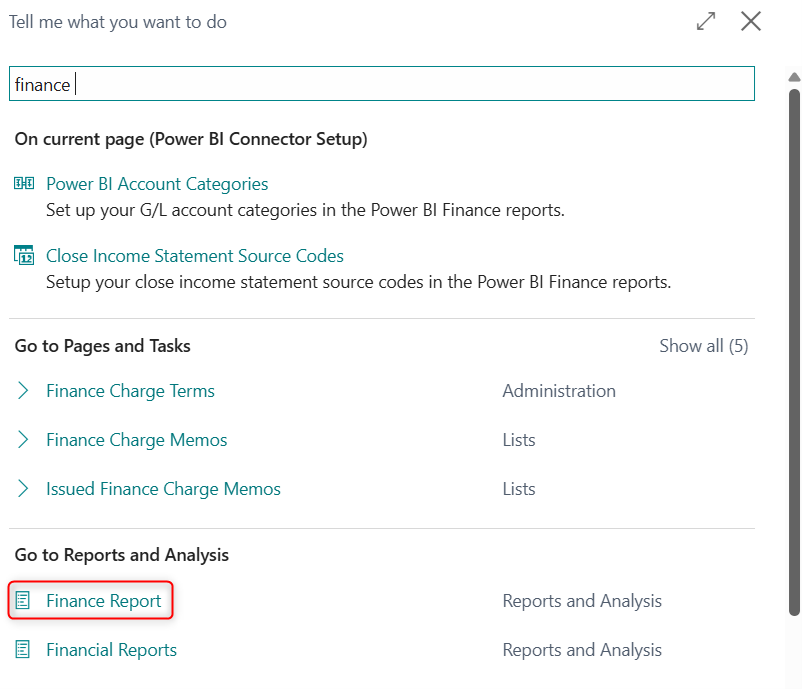
When the proper app is chosen, you will be able to see it within business central by navigating to the report’s respective BC page. Since we installed the Finance App in here, the page would be “Finance Report”.
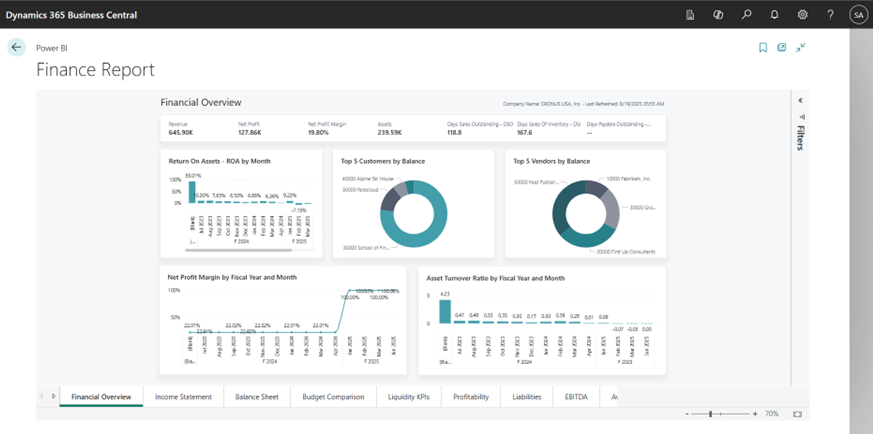
The latest Power BI integration features in Business Central make it easier than ever to unlock insights, streamline reporting, and foster a data-driven culture. Whether you’re a finance lead, operations manager, or solution consultant, these tools empower you to make smarter decisions—faster.
If you’re ready to explore these features or need help building custom dashboards, feel free to reach out. Let’s turn your data into decisions.








