This post is part of a series, Microsoft Copilot, Explained, which begins with productivity tools and building toward business workflows and AI agents.
If you’ve been hearing more about Microsoft Copilot lately, whether in conversations at work or even seeing the logo during televised sporting events, and feeling a mix of curiosity and confusion, you’re not alone.
The distinctions between Copilot options matter more than you might expect. Not because one is inherently “better,” but because each serves a different purpose, and choosing the right one affects both cost and how quickly your team sees value.
This guide breaks down what each version does, where it works, and how to think about which option makes sense for your organization.
Microsoft Copilot Options: Chat, Microsoft 365, and Dynamics 365
Microsoft currently offers Copilot in three primary forms. Each builds on the last, but they’re designed for different use cases and different moments in a team’s AI journey.
- Copilot Chat is included with many Microsoft 365 subscriptions. It provides a secure, web-grounded AI chat experience — similar to ChatGPT, but designed to respect your organization’s data boundaries and security policies.
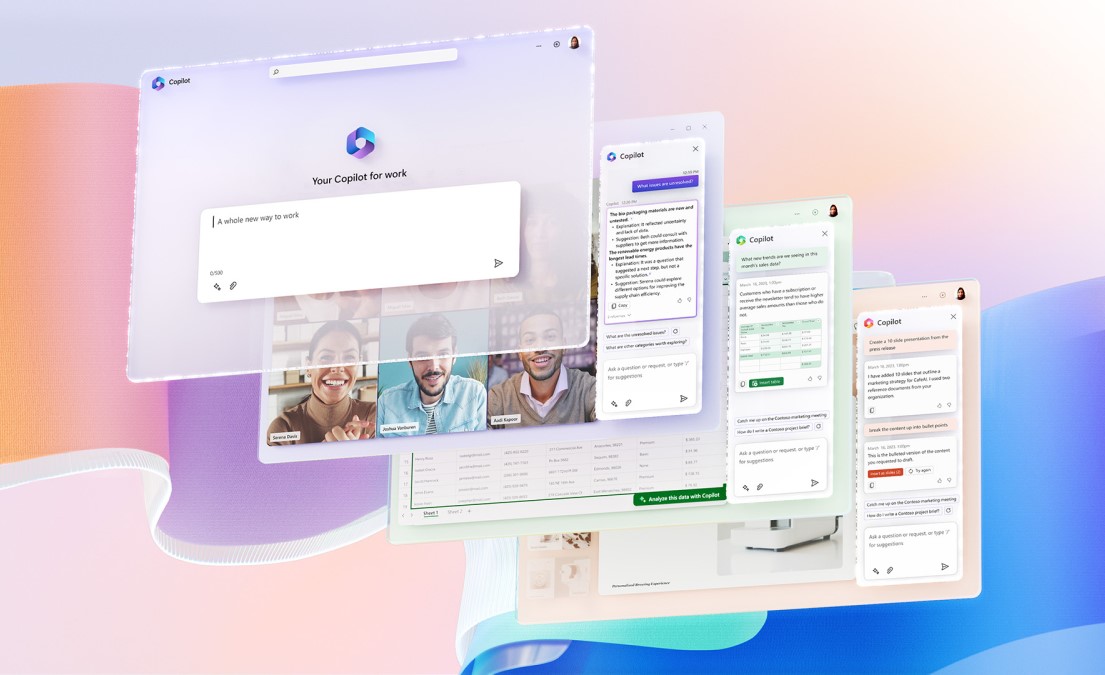
- Microsoft 365 Copilot works directly inside the applications your team uses every day: Outlook, Teams, Word, Excel, and PowerPoint. This is where most organizations see the most immediate, measurable return.
- Copilot in Dynamics 365 extends similar capabilities into business applications like Business Central, Sales, Customer Service, and Field Service. This primarily matters for organizations already using Dynamics 365 for ERP or CRM.
For most teams evaluating Copilot for the first time, the decision centers on Microsoft 365 Copilot — specifically, whether to start with the Business version or the enterprise version.
Copilot Chat
Copilot Chat is often where teams first encounter Copilot, since it’s included with Microsoft 365.
It feels familiar because it behaves like a secure, work-friendly AI chat — one that respects your organization’s data boundaries and can reference information in your Microsoft environment.
In practice, teams use Copilot Chat for things like:
- Asking for a quick summary of a document
- Drafting a rough outline before a meeting
- Turning scattered notes into a starting point for an email
The value here is accessibility. Copilot Chat lowers the barrier to experimentation and helps teams get comfortable asking AI for help without additional licensing costs.
For occasional use, that’s enough. For repetitive work throughout the day, it becomes friction.
Copilot Chat is passive by design. You step out of your workflow, ask a question, get a response, then return to do the work yourself. It’s useful as an introduction, but it doesn’t fundamentally change how the day flows.
That’s why most teams see Copilot Chat as a starting point, not the destination.
Copilot Inside Microsoft 365
Copilot isn’t a separate application you log into. It’s something you enable inside Microsoft 365 apps like Outlook, Teams, Word, Excel, and PowerPoint.
That difference matters more than it sounds. In studies of early Copilot users, people were nearly 30% faster completing common work tasks [1] like searching, writing, and summarizing — largely because they weren’t switching tools or starting from scratch.
And that experience is what actually matters.
Microsoft 365 Copilot Business vs. Microsoft 365 Copilot
Depending on your license, you may hear this referred to as Copilot Business or Microsoft 365 Copilot. The naming varies though it’s less about functionality and more about licensing.
Microsoft 365 Copilot Business is designed for small and mid-sized organizations using Microsoft 365 Business Basic, Standard, or Premium — the plans most common in this size range.
Microsoft 365 Copilot (enterprise) serves the same role for organizations using enterprise licenses like E3 or E5.
The two versions offer feature parity. The difference is which Microsoft 365 license you’re already on, not what Copilot can do.
For most teams, this isn’t a strategic decision it’s simply about aligning Copilot with the licenses you already have.
What M365 Copilot Looks Like for Work Productivity
Imagine a typical morning:
- You open Outlook to an inbox that’s already full
→ Copilot helps draft a response, refine tone, or summarize a long thread so you can reply faster.
→ Read more about why Microsoft 365 Copilot in Outlook Helps You Manage Email Smarter (and Tame Your Inbox). - You leave a Teams meeting
→ Copilot summarizes what was discussed and highlights action items without you scrambling to take notes. - You’re updating a report or budget
→ Copilot helps analyze trends, explain variances, or turn raw numbers into a narrative in Excel or Word.
Nothing about your workflow changes. You’re not learning a new tool. You’re not exporting data or copy-pasting into a separate interface.
You’re just moving faster, with less mental overhead.
That’s why this version of Copilot is where most teams see real, immediate value and why it’s often the right place to start.
Curious what this looks like inside individual apps?
Copilot in Dynamics 365 Business Applications
While the focus of this post is Microsoft 365 Copilot, similar capabilities also exist inside Dynamics 365 applications.
For teams using Business Central or Dynamics 365 CRM applications, Copilot is also available directly inside those systems. This is often where organizations expand next (after seeing value from Copilot in Microsoft 365) using AI to support finance, operations, and customer-facing workflows.
Microsoft also includes pre-built, out-of-the-box agents within Dynamics 365 applications. These agents are designed to help with common tasks and workflows right away without requiring custom development or complex setup.
We’ll explore that in more detail in a future post, but it’s a helpful signal of where Copilot is headed next.
A Practical Way to Start with Microsoft 365 Copilot
One advantage of Microsoft 365 Copilot is that it doesn’t require a big, all-at-once rollout.
You can start with a small group your most enthusiastic early adopters, a specific department, or a team handling high email and meeting volume and expand from there.
If you’re already using Microsoft 365, adding Copilot licenses is straightforward. And because licenses can be added gradually, most organizations take a thoughtful, phased approach rather than deploying broadly before value is clear.
How Most Teams Actually Adopt Copilot
The teams getting the most value from Copilot aren’t leading with sweeping AI strategies or big internal announcements.
They start small. They enable Copilot inside the tools people already use. They focus on everyday workflows — email, meetings, documents and let confidence build organically.
Over time, usage expands on its own. On average, users report saving about 14 minutes a day with Copilot — roughly an hour a week. That may not sound dramatic at first, but it compounds quickly when those minutes come from email, meetings, and document work. About 1 in 5 users report saving more than 30 minutes a day [1].
There’s no advantage to starting at the most complex level before habits form. Progress beats perfection here.
What Teams Don’t Need (At Least Not Yet)
Many teams hesitate because they assume adopting Copilot requires perfect data, a formal AI roadmap, or a commitment to advanced automation on day one.
It doesn’t.
For most organizations, value shows up well before things get complex. Copilot earns trust by helping people get through the work they already have, not by introducing new systems or redefining roles.
More advanced capabilities, including AI agents inside business applications, come later. And when they do, they build naturally on the confidence teams have already developed using Copilot in Microsoft 365.
Why This Matters Now
For a long time, AI felt like something you had to bolt on expensive, disruptive, and risky to get wrong.
What’s changed is where AI now lives. It’s no longer a separate initiative. It’s a layer you turn on inside tools your team already trusts. That shift lowers the risk and raises the upside of starting sooner rather than later.
The question isn’t whether AI belongs in your organization. It’s how comfortably you want to introduce it, and where you want people to experience value first.
Where This Goes Next
In upcoming posts, we’ll explore:
- Why Copilot in Outlook Beats Standalone AI Email Tools
- Why Waiting for Perfect Data Means Never Starting with AI
- What AI Agents in Dynamics 365 Actually Do
If you’re unsure where to begin, that’s normal. The right first step isn’t commitment — it’s clarity.
Source